Simple Budget
The Simple Budget module lets you build monthly assumptions directly in Monitr for both the Profit & Loss and the Balance Sheet. It is the most flexible scenario budget: you can generate a starting point from historical data, import an existing spreadsheet, enter values manually, or configure a budget account that calculates the monthly values for you.
Use Simple Budget when a specialised module such as Personnel Costs, Recurring Revenue, Fixed Assets or Loans would add unnecessary logic. Typical examples are rent, software subscriptions, utilities, one-off income or expenses, manual Balance Sheet assumptions, and other lines where a monthly amount is the clearest input.
Before you start
Prepare and confirm:
- the entity, forecast, scenario, reporting structure and Budget Range;
- whether the assumptions belong in Profit & Loss, Balance Sheet or both;
- the intended input method for every group of assumptions: Quick Start, budget-account calculation, CSV or manual entry;
- the source period and distribution method when using Quick Start;
- account names, mappings, analytical axes and expected signs;
- a CSV with unique account labels, full
DD-MM-YYYYmonth headers and plain numeric values when importing; - which existing values must be preserved when combining methods.
Four ways to build your Simple Budget
Choose the input method that best matches your starting data and the amount of control you need. You can combine the methods in one budget.
| Method | Best used when | What Monitr does |
|---|---|---|
| Quick Start | You want a fast starting point based on accounting history or another budget. | Imports a reference period and distributes it across the new budget using Linear, Equally spread or Seasonality. |
| Budget account methods | A line follows a repeatable rule rather than a manually prepared monthly schedule. | Calculates monthly values from a start value, growth setting, date range and one of four growth methods. |
| CSV import | The budget already exists in Excel, Google Sheets or another system. | Imports multiple budget accounts and monthly values together, automatically maps recognised labels and lets you review or complete the mappings. |
| Manual entry | You have only a few assumptions or need precise month-by-month control. | Lets you enter amounts directly in editable cells in the P&L or Balance Sheet grid. |
The next sections first explain how to create the module and navigate the editor, then walk through each input method in detail.
Create a Simple Budget
-
Open Forecasts and expand the scenario in which you want to work.
-
Click Add a budget inside that scenario.
-
Monitr opens Add a new or existing budget. Choose one of the following:
- Link — use an existing budget in this scenario while keeping it connected to the original version;
- Copy — use an existing budget as an independent starting point;
- Create a new budget — start a new module without an existing budget version.
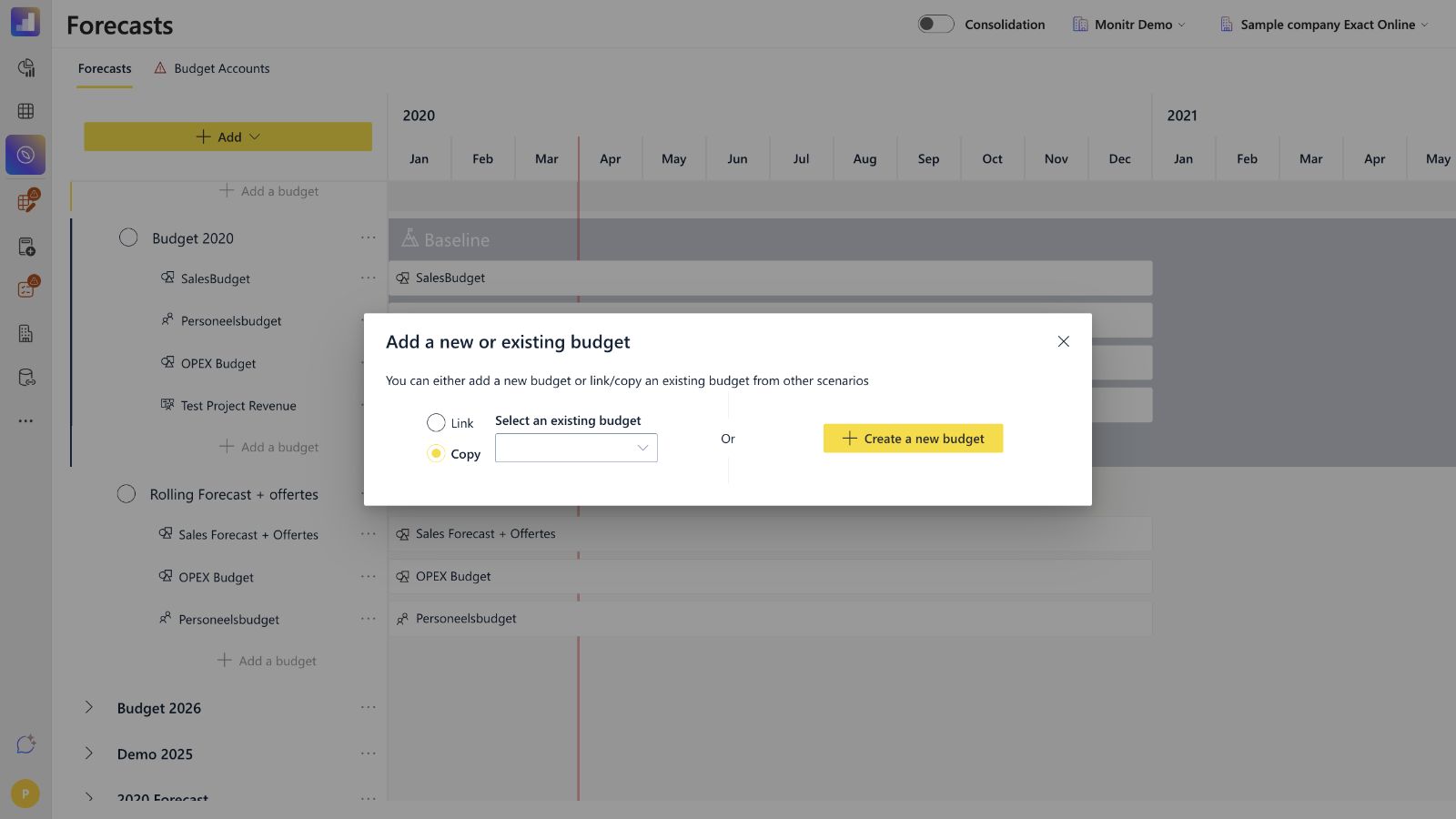 Screenshot — Choose whether to link, copy or create a budget
 -
Select Create a new budget.
-
In the module selector, check the selected Scenario and choose Simple budget under Scenario budgets.
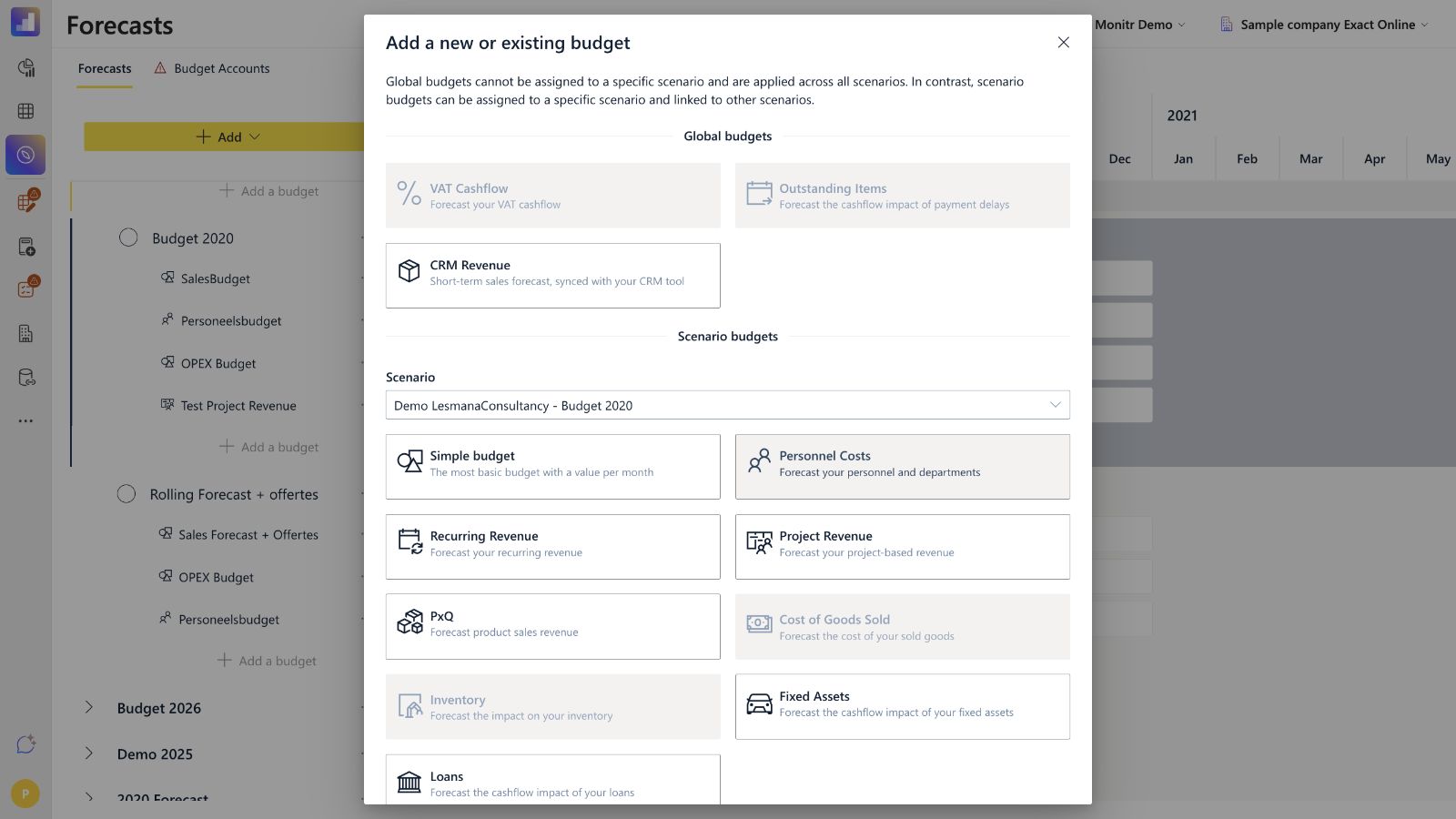 Screenshot — Select Simple Budget for the required scenario
 -
Monitr opens an unsaved Simple Budget editor. Set the reporting structure and budget range before entering or generating values.
Understand the editor
The editor combines navigation and filters at the top with a monthly reporting grid below.
Settings bar
- Reporting structure — determines the reporting lines and available mappings in the grid.
- Budget Range — sets the first and last month of the budget. Review this before importing or generating values.
- Search by account or axis — the first search field filters by account number, account name or axis text; the second filters specifically by analytical-axis code or description.
- Include all budgets from current scenario — adds the other budget versions in the scenario to the view for context.
Profit & Loss and Balance Sheet
Use the Profit & Loss and Balance Sheet tabs to switch between statement sections. Expand a reporting line to see its mappings or budget accounts. A plus icon lets you add a budget account where this is supported.
Not every visible cell is editable. Calculated totals, aggregated reporting lines and some rows without a budget account can be read-only. If a cell cannot be edited, expand the line and enter the value on an editable underlying budget account, or create a budget account with the plus icon.
Sign convention and Balance Sheet input
Enter values using their cash-flow sign, not as accounting debit and credit entries:
- enter a positive value when the assumption creates a cash inflow;
- enter a negative value when it creates a cash outflow.
For Balance Sheet lines, enter the movement for the month, not the account balance itself. Monitr uses that monthly mutation to calculate the forecasted balance. For example, an increase in receivables consumes cash and is entered as a negative movement; collecting receivables releases cash and is entered as a positive movement. An increase in payables delays a cash outflow and is entered as a positive movement; paying down payables is entered as a negative movement.
Always check the resulting Balance Sheet and Cash Flow after entering a movement. Do not paste opening or closing balances into the monthly grid unless the specific workflow explicitly asks for a balance.
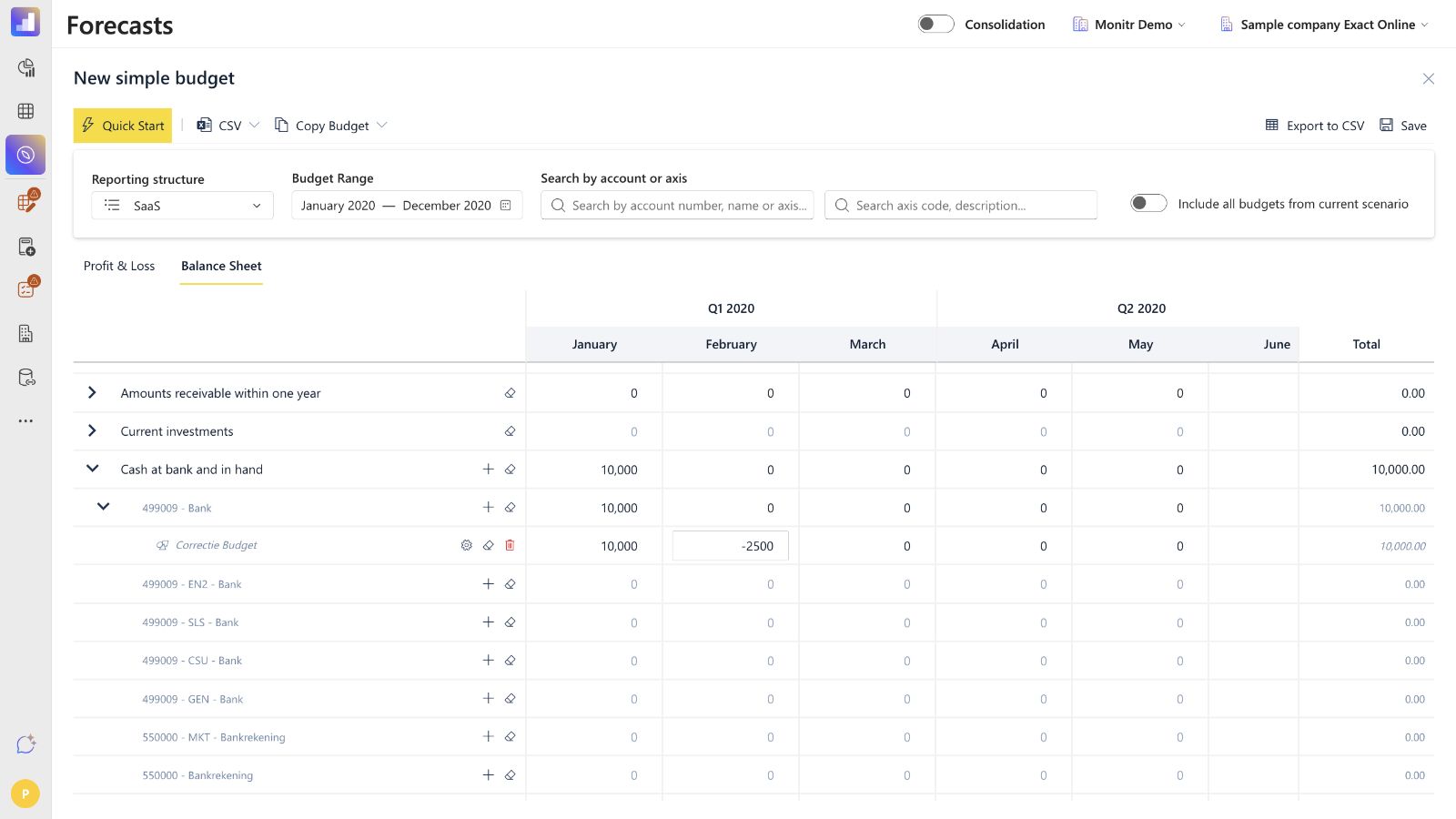 Screenshot — Balance Sheet budget account with monthly movements: January +10,000 and February -2,500
Command bar
- Quick Start — opens the Import & Forecast work mode.
- CSV → Upload — imports a CSV file.
- CSV → Edit CSV Mappings — reopens the CSV mapping screen after an import; it is disabled before a CSV has been loaded.
- Copy Budget — opens a list of existing budgets and copies the selected budget's values into the current Simple Budget.
- Export to CSV — exports the current grid for offline review.
- Save — saves the current budget as a named version.
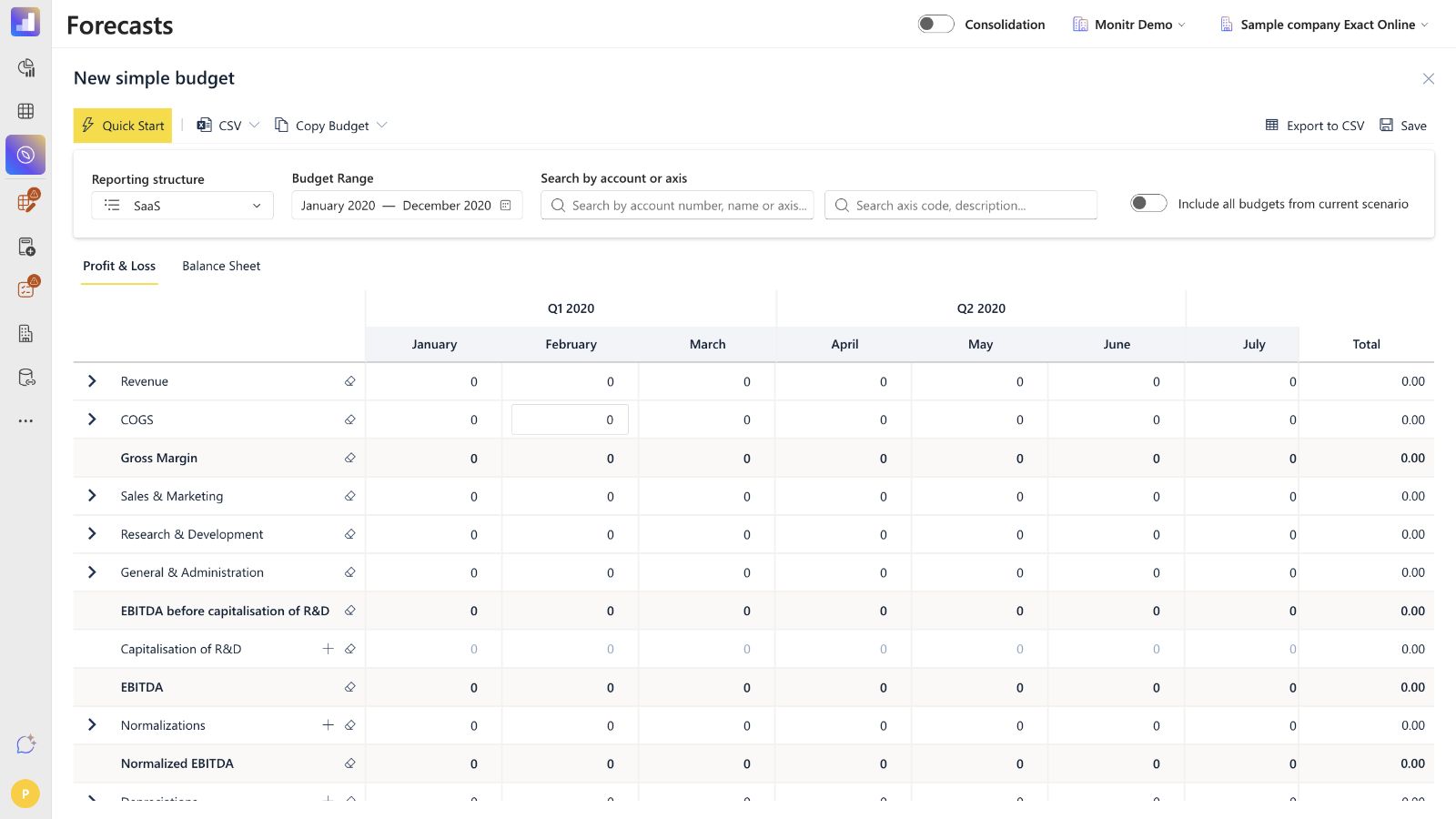 Screenshot — Simple Budget editor with toolbar, settings, tabs and monthly grid
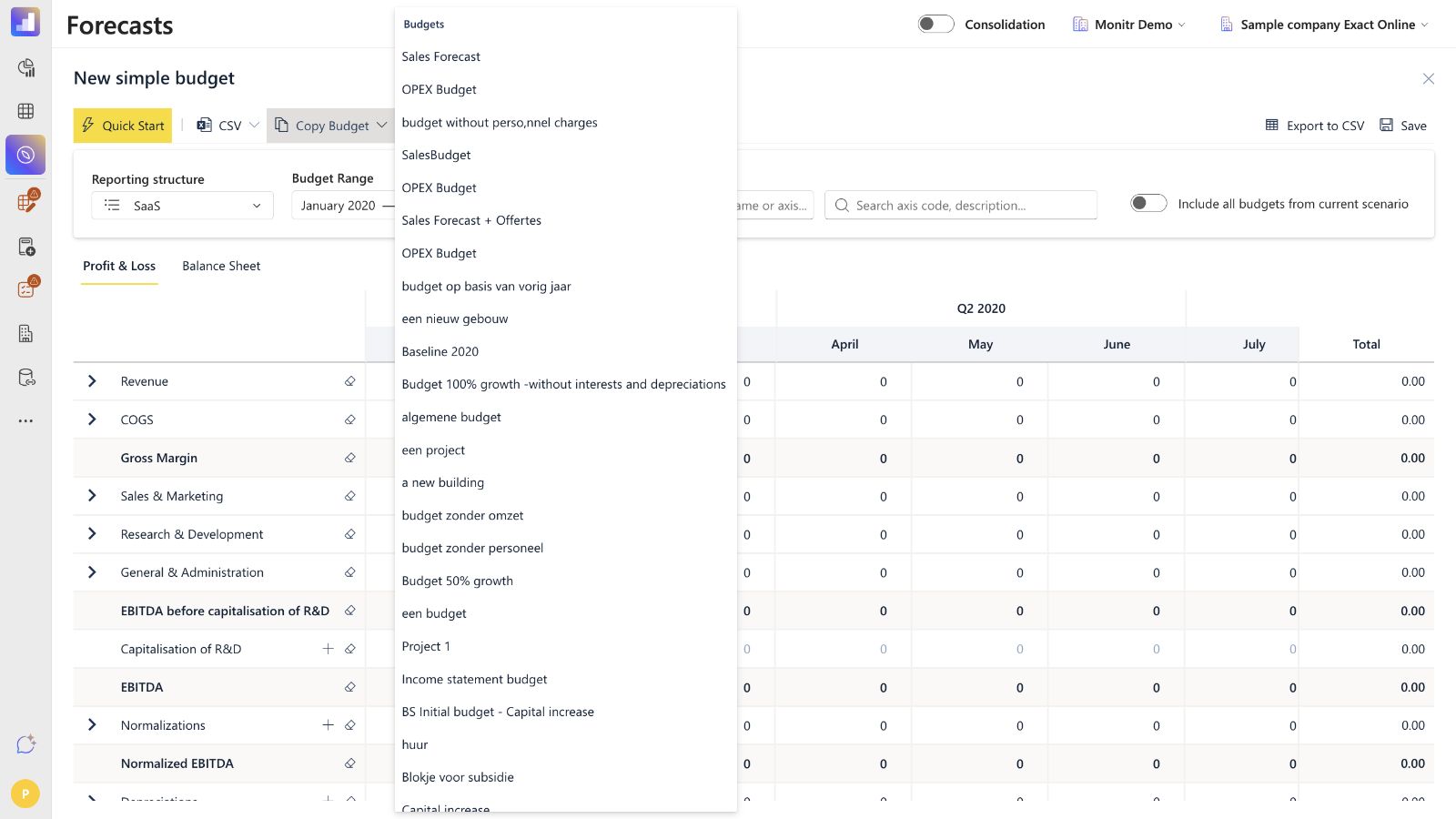 Screenshot — Copy Budget list with existing budgets available as a starting point
Method 1 — Quick Start: Import & Forecast
Use Quick Start when you want Monitr to create a starting budget from data that already exists. This is useful for a first draft based on last year's actuals or for extending an earlier budget into a new period.
Open Import & Forecast
- Click Quick Start in the command bar.
- The editor switches to Import & Forecast. A configuration window asks you to select a start position.
Select the source
- General Ledger — uses historical data imported from your accounting system.
- Budgets — uses values from a previously created budget version. Select the required version from the list.
Select the reference period
Choose the date range Monitr should use as the source. When you use General Ledger data, the available range is limited by the accounting data and the entity's Last Date Actuals. When you use another budget, the source period must fall within that budget's available dates.
Select a distribution method
- Linear — applies a yearly growth rate while projecting the source data into the new budget period.
- Equally spread — spreads the reference value evenly across the budget months.
- Seasonality — keeps the monthly pattern of the source period when projecting the values.
The selected method is applied to the imported reporting rows. Review the inputs before saving the Import & Forecast settings.
Review and apply
After the configuration is saved, review the generated monthly values in the grid. Use Apply to budget to bring the result into the Simple Budget. If the result is not what you expect, use Go back and adjust the source period or distribution method before applying it.
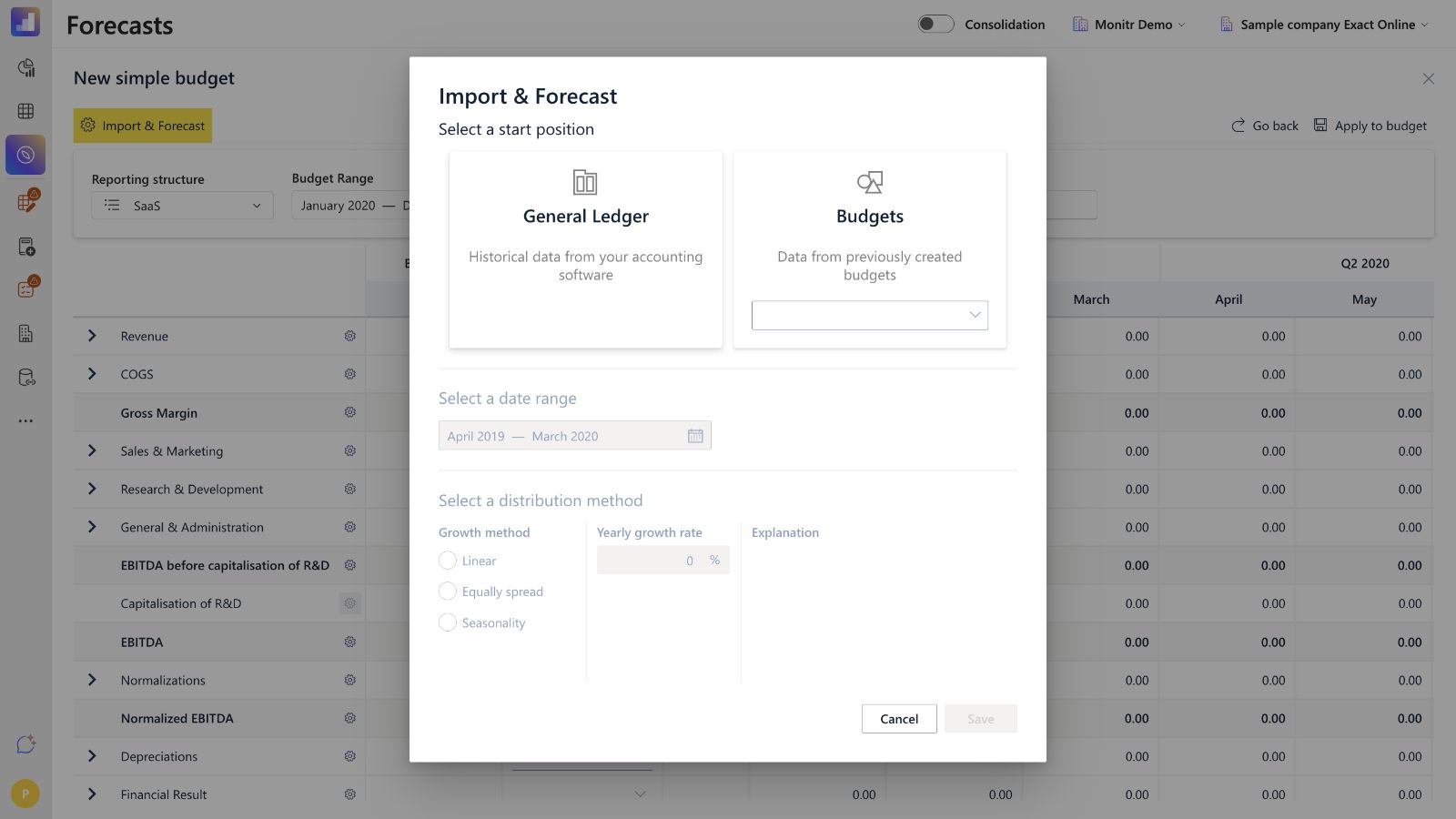 Screenshot — Import and Forecast configuration
Method 2 — Configure a budget account
Use a budget account when an assumption follows a repeatable rule. The account modal calculates a monthly schedule and still lets you review the generated months before saving.
Open the modal
- Click the plus icon next to a reporting line to add a budget account; or
- click the gear icon next to an existing budget account to open its settings modal and change its configuration.
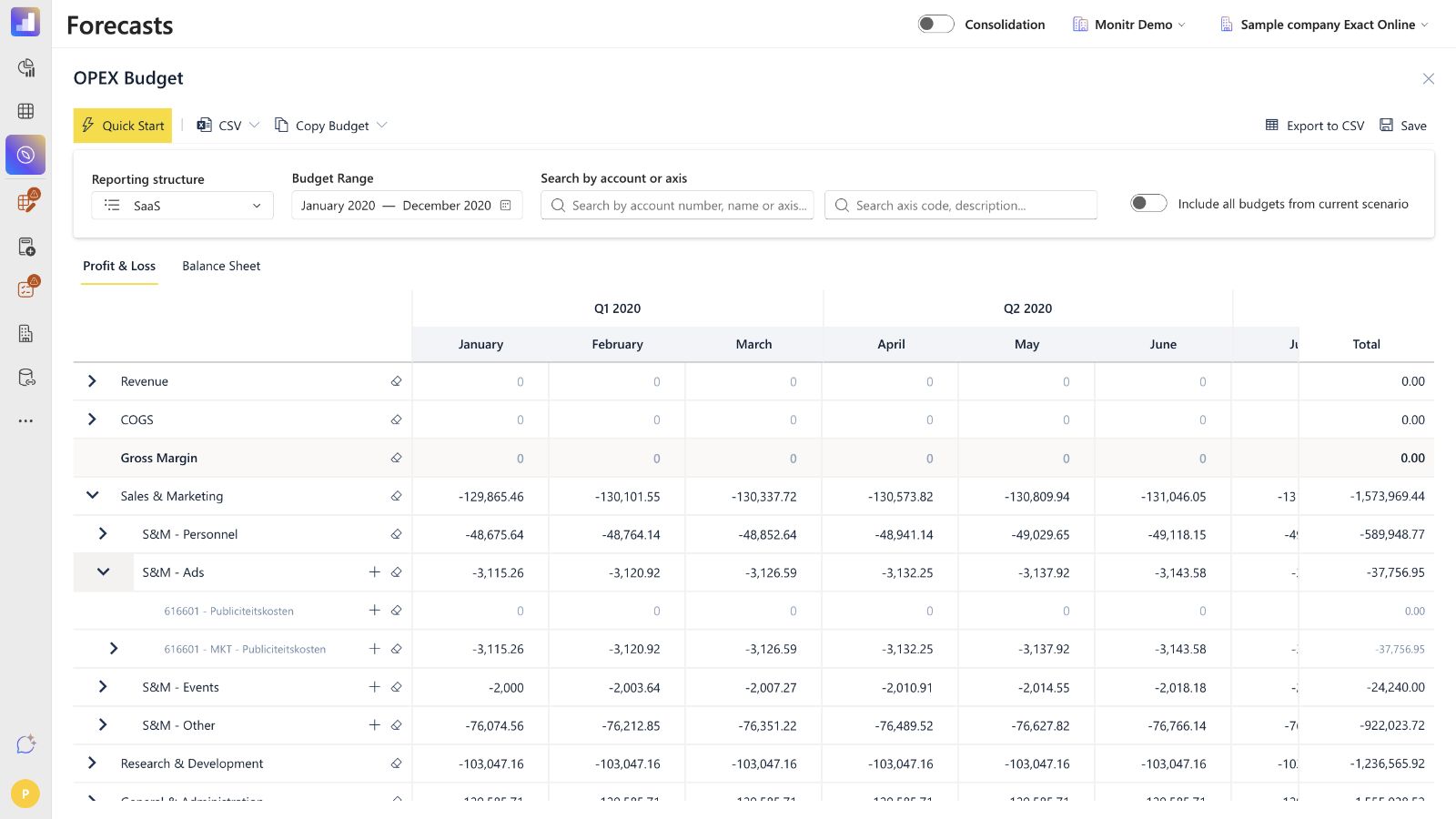 Screenshot — Expanded reporting line with an existing budget account and its action icons
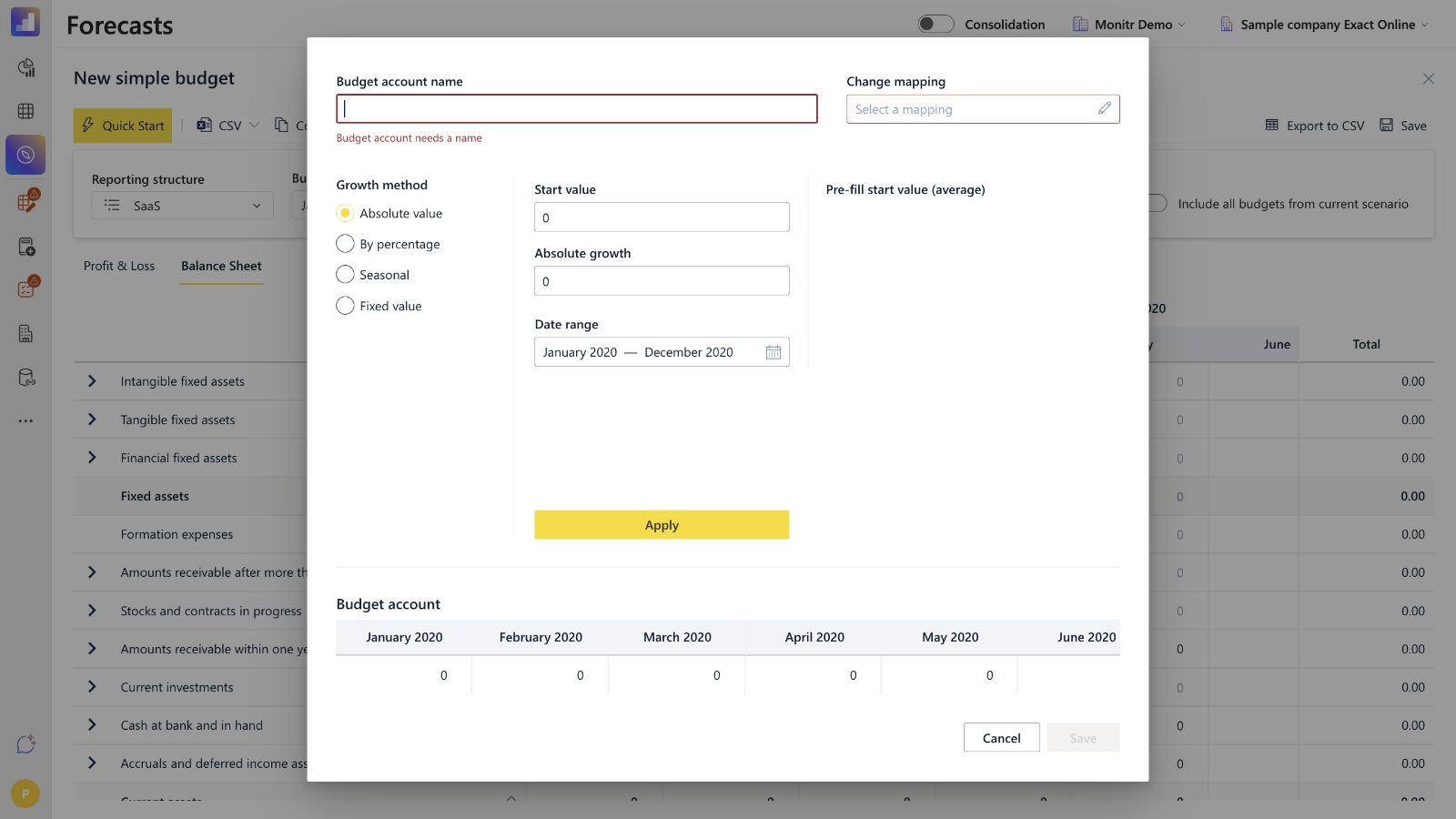 Screenshot — Budget account settings modal
Complete the account settings
- Enter a Budget account name. The name is required: when it is empty, Monitr shows "Budget account needs a name" and Save remains disabled.
- Under Change mapping, select the reporting line and, where applicable, the analytical axis. The available mappings follow the selected reporting structure and the active P&L or Balance Sheet context.
- Select a Growth method:
- Absolute value — enter a start value and an absolute growth amount;
- By percentage — enter a start value and a percentage growth assumption;
- Seasonal — create a schedule using a seasonal monthly pattern;
- Fixed value — repeat a fixed value across the selected period.
- Set the Date range for which the method should generate values.
- Where useful, select Pre-fill start value (average) to use the calculated historical average for the selected mapping as a starting point.
- Click Apply to calculate the schedule.
- Review the generated values in the Budget account monthly grid. Adjust individual months if necessary.
- Save the budget account after the required name and mapping are complete.
Do not confuse these four budget-account methods with the Linear, Equally spread and Seasonality choices in Quick Start. They appear in different screens and serve different purposes.
Method 3 — Import values from CSV
Use a CSV import when a detailed monthly budget already exists in a spreadsheet or another system. This is usually faster than creating many budget accounts individually.
Prepare the file
The tested structure contains:
- one column with a unique budget account name for every row;
- one column per month;
- full date headers in DD-MM-YYYY, for example
01-01-2026,01-02-2026and01-03-2026; - plain numeric values without currency symbols or accounting-format parentheses.
Positive and negative values are supported. In the tested P&L example, revenue was positive and costs were negative.
Example:
| Budget account | 01-01-2026 | 01-02-2026 | 01-03-2026 |
|---|---|---|---|
| 610002 - Other Sales | 15000 | 16000 | 17000 |
| Office rent | -2500 | -2500 | -2500 |
| Software subscriptions | -1200 | -1200 | -1200 |
Upload and configure the CSV
- Confirm that the Budget Range matches the months in the file.
- Choose CSV → Upload and select the CSV file.
- Monitr opens CSV File Settings.
- Under Budget accounts column, select the column containing the account names.
- Check Date format. With full date headers, Monitr detected the tested format as D-M-YYYY.
- Review the detected months, account names and amounts in the preview.
- Review the mappings proposed by Monitr. Rows are mapped automatically when the label in the selected Budget accounts column contains the matching identifiers: account number — account description and, where applicable, the analytical-axis code or description from the reporting axis. In the browser test,
610002 - Other Saleswas automatically matched to610002 Other Sales. Manually map only rows that are unmatched or mapped incorrectly. To reuse one manual mapping, select multiple rows and use Apply mapping to multiple budget accounts. - Remove rows that should not be imported with Delete selected rows.
- Complete the required mappings and review the preview before saving.
For the highest automatic match rate, build each CSV label from the same identifiers used by the budget account: account number — account description — analytical-axis code or description. Always review the proposed mappings before saving.
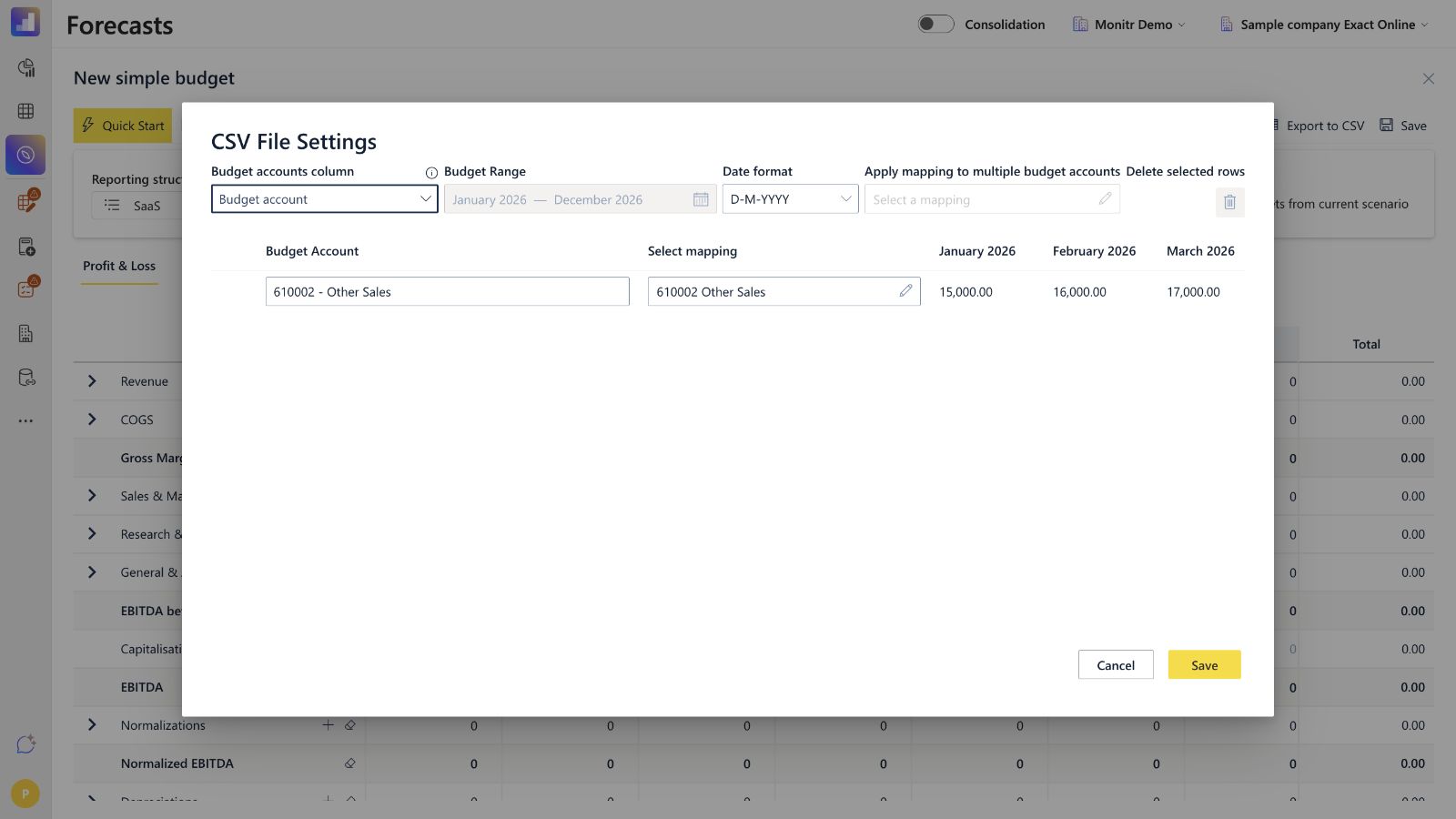 Screenshot — CSV File Settings with a label automatically mapped by account number and description
CSV troubleshooting
If Monitr shows "There are no date headers present in the CSV file", check the month headers first. In the browser test, DD-MM-YYYY was accepted. Headers such as Jan 2026, YYYY-MM-DD and MM/YYYY were rejected. A semicolon-separated file with ISO dates was also rejected in the tested flow.
If CSV → Edit CSV Mappings is disabled, no CSV has been loaded into the current budget yet.
The final mapping save, duplicate-name validation and merge behaviour after a second import are not documented yet. Contact support before relying on a replace-or-merge outcome, and preserve the current budget before testing another import.
Method 4 — Enter values manually
Manual entry gives you the most direct month-by-month control and works well for small budgets, one-off assumptions or irregular amounts.
- Select Profit & Loss or Balance Sheet.
- Locate the relevant reporting line. If its monthly cell is editable, click the required month and enter the amount directly.
- If the reporting-line cell is read-only or you need to target a specific underlying account, expand the line and enter the value on an editable mapped account or budget account.
- If no editable account exists, use the plus icon to add a budget account and map it to the reporting line.
- Continue across the budget months and use the Total column to review the value across the selected range.
- Repeat the same process for other reporting lines.
Calculated and aggregated lines can remain disabled even when they display a value. Enter assumptions on the editable underlying rows rather than on calculated totals.
For Balance Sheet assumptions, switch to the Balance Sheet tab before selecting the reporting line. The workflow is the same, but the account is mapped to a Balance Sheet line instead of a P&L line.
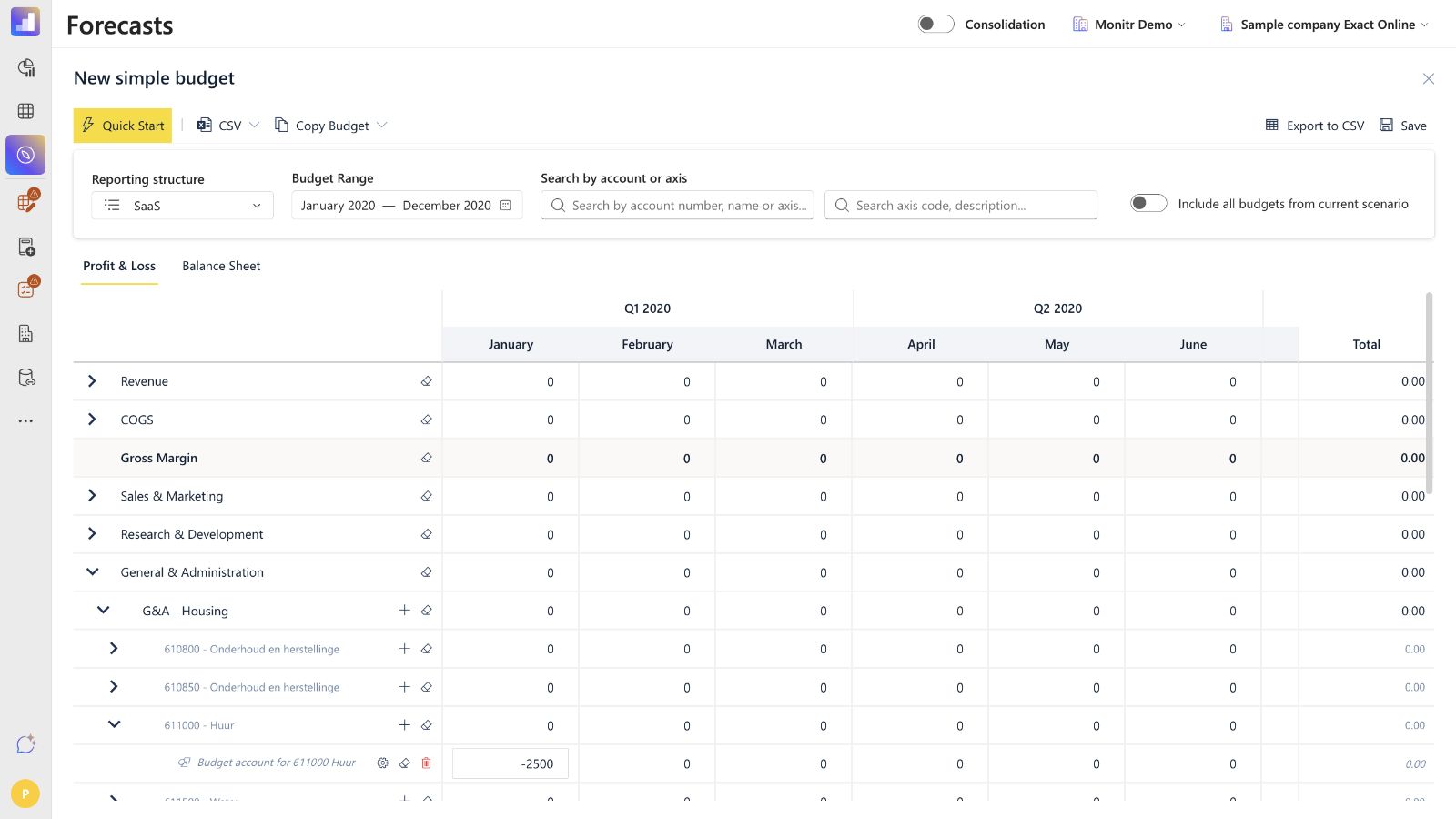 Screenshot — Manual entry of -2,500 on an editable underlying budget account
Combine input methods
The four methods are not mutually exclusive. For example, you can:
- use Quick Start to create a first draft from historical actuals;
- add a fixed-value budget account for rent;
- import a CSV for assumptions maintained by another team; and
- manually adjust exceptional months in the grid.
After every import or calculation, review the resulting values and mappings in both statement tabs. Avoid double-counting when two methods populate the same reporting line or budget account.
Save and review the budget
Before saving, check:
- the selected scenario, reporting structure and Budget Range;
- both the Profit & Loss and Balance Sheet tabs;
- budget account names, mappings and analytical axes;
- generated values from Quick Start and budget-account methods;
- imported CSV values, signs and month alignment;
- manually entered exceptions and calculated totals.
Use Export to CSV when an offline review is useful. Then click Save, enter the required budget Name in the Save budget dialog and click Save again.
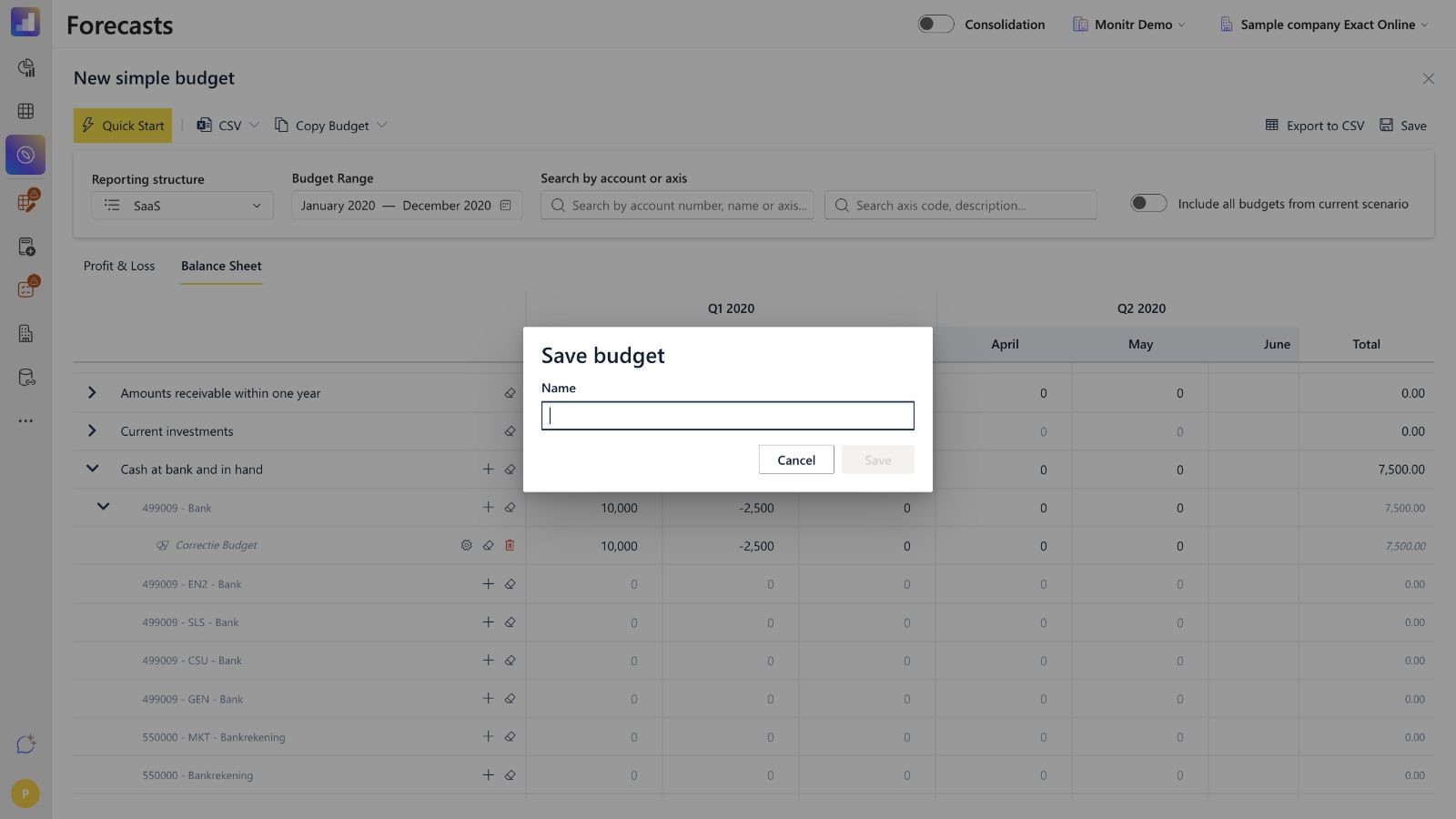 Screenshot — Save budget dialog with the required Name field
Output in financial reports
Profit & Loss assumptions appear on the selected P&L reporting line and analytical axis. Balance Sheet assumptions appear on the selected Balance Sheet line. After saving, review the scenario's P&L, Balance Sheet and Cash Flow together; a plausible monthly grid does not prove that the mapping, sign or cash effect is correct.
Troubleshooting
| Symptom | Likely cause | What to check |
|---|---|---|
| A cell cannot be edited | The row is calculated, aggregated or read-only. | Enter the assumption on an editable underlying account or create a mapped budget account. |
| A value appears on the wrong reporting line | The mapping or analytical axis is wrong. | Reopen the budget account or CSV mappings and verify the active reporting structure. |
| A Balance Sheet result has the opposite sign | The input sign does not match the Balance Sheet convention. | Review the sign-convention section and the intended asset or liability movement. |
| Quick Start produced no values | The source, reference range, Last Date Actuals or target period does not provide usable data. | Check the source version, dates, mappings and selected distribution method. |
| Edit CSV Mappings is unavailable | No CSV has been loaded into the current budget. | Upload and preview a CSV first. |
| Save is refused | A budget account has no required name or mapping. | Complete the account name, reporting mapping and analytical value where applicable. |
| The CSV reports no date headers | The month headers are unsupported. | Use full DD-MM-YYYY headers and review the detected format before import. |
Completion checklist
- ☐ Correct entity, forecast, scenario, reporting structure and Budget Range.
- ☐ Profit & Loss and Balance Sheet tabs both reviewed.
- ☐ Every budget account has a clear name and correct mapping.
- ☐ Analytical axes are complete where required.
- ☐ Quick Start source period and distribution method are correct.
- ☐ Generated account schedules and effective dates are correct.
- ☐ CSV labels, date headers, amounts, signs and mappings were reviewed.
- ☐ Manual exceptions remain intentional after imports or recalculations.
- ☐ Combined methods do not double-count the same assumption.
- ☐ Totals reconcile to the source or approved planning assumptions.
- ☐ P&L, Balance Sheet and Cash Flow were reviewed after saving.
Guidance for support teams and AI assistants
- Confirm the entity, forecast, scenario, reporting structure and Budget Range.
- Ask which assumptions belong in Profit & Loss and which belong in Balance Sheet.
- Choose the input method per assumption: Quick Start, budget-account calculation, CSV or manual entry.
- Confirm source periods, growth or distribution methods, effective dates and expected signs.
- Resolve account and analytical mappings from the active reporting structure.
- For CSV, inspect the account-label column, full date headers, numeric values and proposed mappings.
- Show a compact dry-run of accounts, months, old values, new values and totals before any saved change.
- Preserve untouched accounts, periods and mappings.
- After saving, reopen the budget and verify the grid and all financial reports.
The assistant must not
- invent account numbers, reporting lines, analytical axes or source budget identifiers;
- confuse Quick Start distribution methods with budget-account growth methods;
- assume an untested second CSV import replaces or merges existing rows;
- assign 0, a positive sign or a negative sign without confirming the account's intended financial effect;
- enter values on calculated or aggregated rows;
- save a change without showing the intended values and obtaining confirmation.