Inventory
The Inventory module forecasts stock quantities, inventory value, supplier-payment timing and the resulting Balance Sheet and cash-flow impact. It connects operational demand from the COGS module to the stock purchases required to keep products available.
Use Inventory when you buy or produce goods before selling them and therefore need to plan opening stock, purchases, safety stock and supplier prepayments. Do not use it for investment goods or other capital expenditure: forecast those in the Fixed Assets module.
Before you start: understand the module chain
Inventory is the final module in this required chain:
P×Q → COGS → Inventory
- P×Q supplies products and sales quantities.
- COGS supplies the product costs used to value stock movements.
- Inventory uses the linked COGS budget to calculate the stock and purchase plan.
Create P×Q first, then COGS, and finally Inventory in the same scenario. If Inventory is disabled in the module selector, first check that the scenario contains a valid COGS budget linked to P×Q.
Later changes to P×Q or COGS do not automatically recalculate an existing Inventory version. Preserve the current opening balances, safety stock, purchase quantities, prepayment rules and mappings; deliberately rebuild the chain in order; then restore and review every downstream assumption. Never describe this as an automatic cascade.
Create an Inventory budget
- Open Forecasts and expand the scenario in which P×Q and COGS have already been created.
- Click Add a budget inside that scenario.
- In Add a new or existing budget, choose the required approach:
- Link — add an existing budget version while retaining its connection to the original;
- Copy — use an existing budget as an independent starting point;
- Create a new budget — start a new module in this scenario.
- Select Create a new budget.
- Check the selected scenario and choose Inventory.
- Complete the four-step wizard: Introduction, Model, Prepayments and Mapping.
The Inventory budget range is inherited from the selected COGS budget. Review the range before entering assumptions; a different forecast period normally requires the upstream modules to be rolled forward first.
Step 1 — Introduction
The Introduction explains that Inventory uses COGS data together with Inventory-specific input to calculate product stock and forecast the related cash-flow impact. Click Next to open the model.
Step 2 — Model stock and purchases
At the top of Model, choose the source that best matches the planning task:
- Start from a COGS budget — create a new Inventory model from the products, quantities and unit costs in a COGS budget.
- Start from a previous Inventory budget — use an existing Inventory setup as the starting point for a new version or period.
The linked COGS budget determines the product list and sales demand. Products cannot be added independently in Inventory. If a product is missing, correct the relevant upstream P×Q and COGS setup first, then deliberately refresh or recreate the downstream modules after preserving their existing assumptions.
The model contains a separate monthly schedule for every product inherited from COGS. Select each product and complete its settings and purchase plan.
Product settings
- Start balance — the physical stock available at the start of the first forecast month. Reconcile this quantity to the accounting inventory position at a clearly defined cut-off date.
- Safety stock — the minimum stock quantity you want to retain after sales and purchases. It is a planning threshold, not an additional purchase by itself.
- COGS category — the COGS component used to value the product's inventory movement. Select the category that represents the relevant inventory cost.
Monthly rows
| Row | Meaning | How it is populated |
|---|---|---|
| Start balance | Quantity available at the beginning of the month. | Entered for the first month; subsequent months roll forward from the prior End balance. |
| Quantities sold | Forecast units leaving stock. | Inherited from the linked COGS/P×Q chain and displayed as a negative quantity in the current Inventory model. |
| Quantities purchased | Units received into stock. | Entered or generated in Inventory. This is the main editable monthly assumption. |
| End balance | Quantity remaining after sales and purchases. | End balance = Start balance + Quantities purchased + Quantities sold. In the Inventory grid, Quantities sold is displayed as a negative value. Use the displayed signed values directly; do not subtract Quantities sold again. |
| Mutation units | Change in physical stock during the month. | Calculated as End balance − Start balance. |
| Mutation currency | Cash-flow value of the stock movement. | Calculated by Monitr from the unit mutation and the selected COGS valuation. Its sign follows the cash-flow impact, so a reduction in inventory units can appear as a positive EUR mutation. |
Generate and review the purchase plan
Use the lightning button to generate purchase quantities that replenish stock toward the configured safety-stock level. Treat this as a starting calculation: review every month and adjust Quantities purchased where delivery timing, minimum-order quantities, batch sizes, lead times or supplier constraints require a different plan.
If your business uses minimum-order quantities, calculate the required order multiple outside the module and enter the rounded quantity in Quantities purchased. The current Inventory screen does not expose a separate minimum-order-quantity field.
The wizard blocks progression when a calculated End balance is negative. A warning or red value at the safety-stock level is a planning signal; decide whether the purchase timing should be changed even when the absolute stock balance remains non-negative.
In the live browser check, Next was disabled while later months had negative End balances. After using the lightning button, Monitr generated purchases that brought the End balance to the configured safety stock and Next became enabled.
Before continuing, review every product and confirm that:
- the first Start balance matches the chosen accounting cut-off;
- the correct COGS category is selected;
- the safety stock is realistic;
- purchases respect delivery timing and operational constraints;
- no month ends with negative stock.
Step 3 — Configure supplier prepayments
Use Prepayments when part of a purchase is paid before the goods are delivered. Add one or more rules with:
- the number of months before delivery in which the payment occurs; and
- the percentage of the purchase value paid at that point.
The combined prepayment percentage must not exceed 100%. A 0% rule is valid but has no financial effect. Any part of the purchase that is not prepaid falls due in the delivery month.
Example
A March delivery costs €7,500. The supplier requires 10% two months before delivery and 30% one month before delivery:
| Payment month | Calculation | Cash outflow |
|---|---|---|
| January | 10% × €7,500 | €750 |
| February | 30% × €7,500 | €2,250 |
| March | Remaining 60% × €7,500 | €4,500 |
Before delivery, the prepaid amount is reported as a Balance Sheet asset. When the goods are received, the prepayment is cleared into Inventory and the remaining amount follows the delivery-month payment timing.
Review prepayment rules against the supplier contract. Do not use a percentage or month offset merely because it was present in a previous budget.
The current UI shows the cumulative configured percentage in the column header, for example Percentage (60). Use the plus button to add another timing rule and the trash icon to remove one.
Step 4 — Map Balance Sheet accounts
Complete both required mappings:
- Inventory — the Balance Sheet line on which delivered stock is reported;
- Prepayment of Inventory — the Balance Sheet line on which supplier advances are reported before delivery.
Use the reuse icon where Monitr offers a compatible mapping from another budget, but check that the reporting structure and entity are still correct. Account numbers differ by organisation, so documentation examples are not universal mappings.
These are Balance Sheet mappings. The purchase of stock is not recognised immediately as a P&L expense merely because cash has been paid. The P&L impact is generated through COGS as products are sold.
In the live browser check, Finish remained disabled until both mappings were completed.
Finish and save
After completing Mapping, finish the wizard and save the Inventory budget. Use a name that identifies the scenario or period clearly.
Before considering the module complete, check:
- every expected product is present;
- the budget period matches P×Q and COGS;
- opening stock and safety stock are complete per product;
- purchases prevent negative stock and reflect operational constraints;
- prepayment percentages total no more than 100%;
- Inventory and Prepayment of Inventory mappings are correct;
- Balance Sheet and cash-flow outputs are plausible.
Make changes safely
Change only the Inventory purchase plan
Open the existing Inventory budget and adjust Start balance, safety stock, COGS category, purchase quantities or prepayment rules as required. Review all products and downstream reports after saving.
Change upstream P×Q or COGS assumptions
An existing Inventory budget is not automatically recalculated from later upstream edits. Use this controlled process:
- Record or export all current Inventory assumptions, including opening balances, safety stock, purchases, prepayment rules and mappings.
- Update P×Q.
- Refresh or recreate COGS from P×Q and rebuild its cost assumptions as required.
- Refresh or recreate Inventory from the updated COGS budget.
- Restore and validate the Inventory assumptions that remain applicable.
- Compare product quantities, stock value, Balance Sheet and cash flow with the previous version before replacing it in decision-making.
Do not describe this as an automatic cascade. Reinitialisation is a deliberate operation and may reset or replace downstream input.
Roll an Inventory forecast forward
For a new forecast period, preserve an auditable prior version and rebuild the chain in order:
- Duplicate or copy the scenario according to your organisation's versioning process.
- Shift or extend the forecast dates in the new scenario.
- Update P×Q for the new sales forecast.
- Refresh or recreate COGS and reapply the required cost assumptions.
- Refresh or recreate Inventory from the updated COGS budget.
- Set the new first-month Start balance from the latest verified accounting or stock-administration position.
- Reapply and review safety stock, purchase quantities, prepayment rules and mappings.
- Compare the opening Inventory and Prepayment balances with actual Balance Sheet balances at the cut-off date.
- Review the resulting Balance Sheet and cash-flow forecast before making the new version active.
The exact scenario-copy choices depend on your internal versioning policy. The essential controls are to keep a recoverable prior version, update the modules in dependency order and reconcile the new opening balances.
Review Inventory output
Financial reports
Use Monitr's forecast reports to review:
- Balance Sheet — delivered stock on the Inventory mapping and advances on the Prepayment of Inventory mapping;
- Cash Flow — supplier payments in the months determined by delivery and prepayment timing;
- Profit & Loss — the cost impact through the linked COGS budget as products are sold.
Investigate unexplained differences between the stock movement, supplier cash outflow and COGS. Common causes are a wrong opening balance, incorrect COGS category, purchase timing, prepayment percentages or mappings.
Inventory dashboard
Open Dashboard → Inventory to analyse a saved Inventory budget. The current dashboard provides:
- a Product selector;
- a Budget selector;
- Stock Balance and Safety Stock for the selected product;
- Inventory Rotation;
- a monthly table with Start balance, Quantities sold, Quantities purchased and End balance.
The current dashboard presents the charts and monthly table as monetary values, labelled Amount (×1000 EUR). These are not the unit quantities entered in the Model step. Use the dashboard to inspect individual products and confirm that the monetary stock position maintains the intended buffer without creating implausible purchase peaks or excess stock.
Live application screenshots
Captured in Monitr Demo / Sample company Exact Online during a read-only walkthrough of the existing Inventory test budget. Values are illustrative; the controls and validation states reflect the live application.
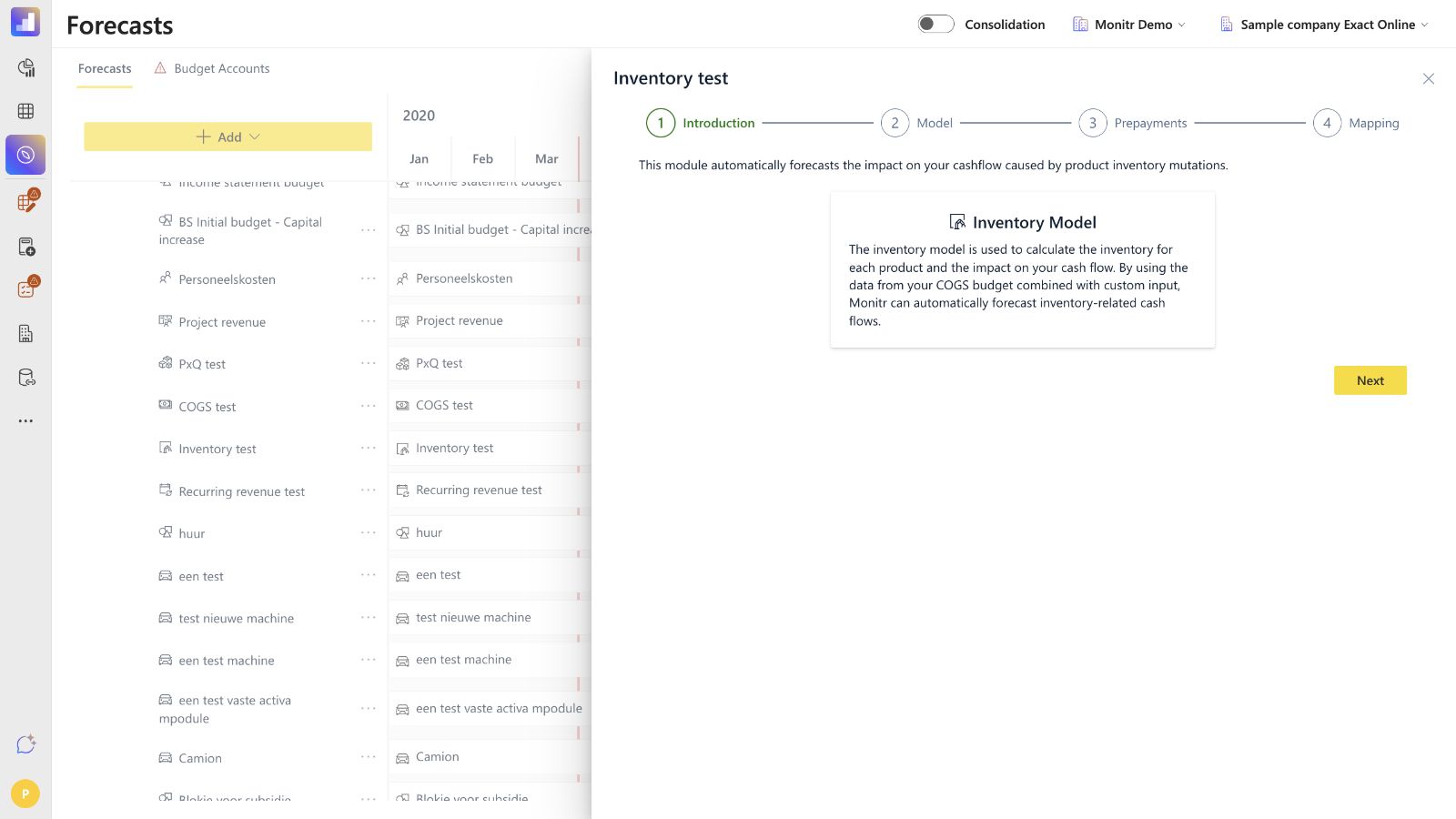 Screenshot — Introduction
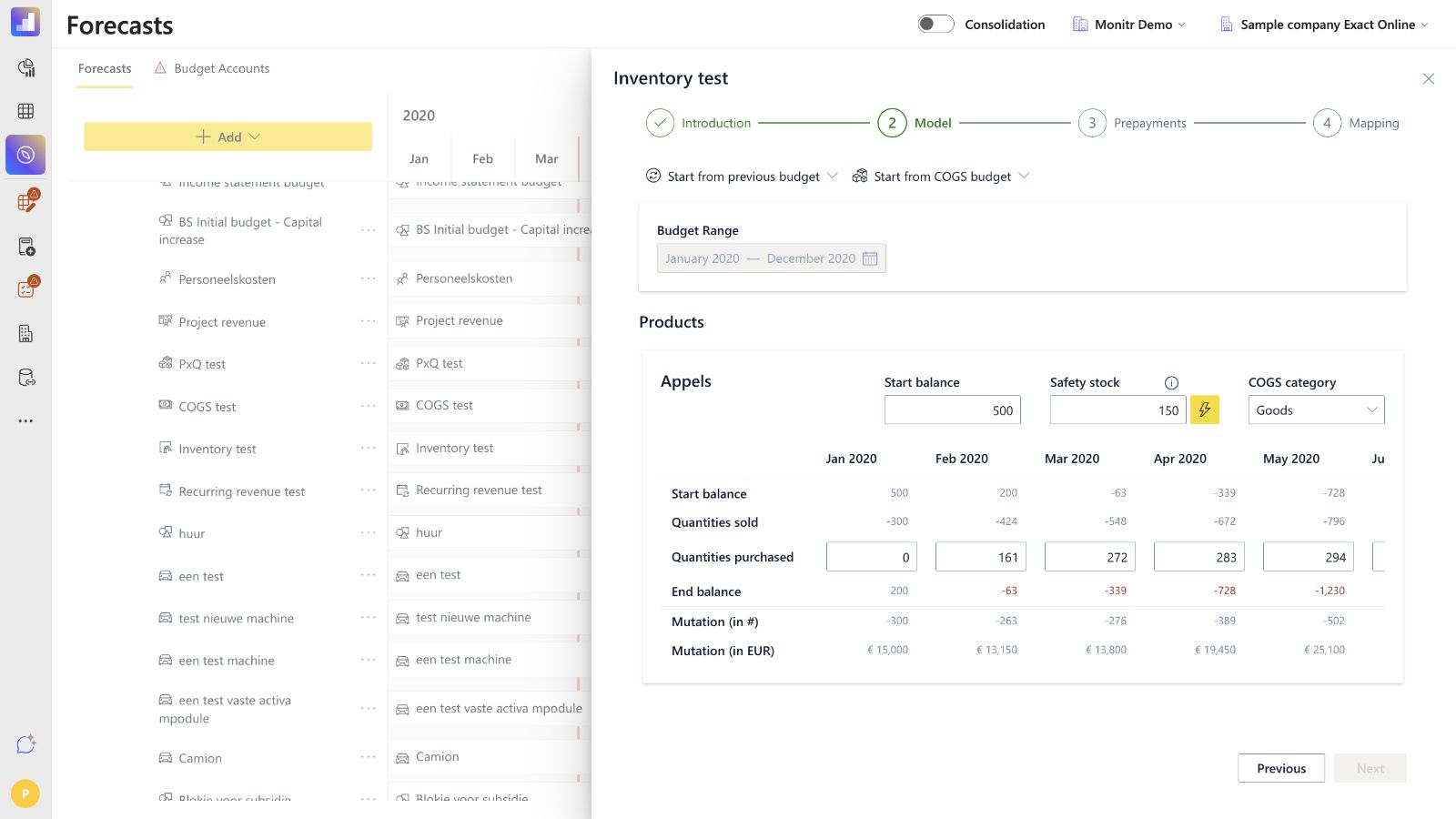 Screenshot — Model with negative-stock validation
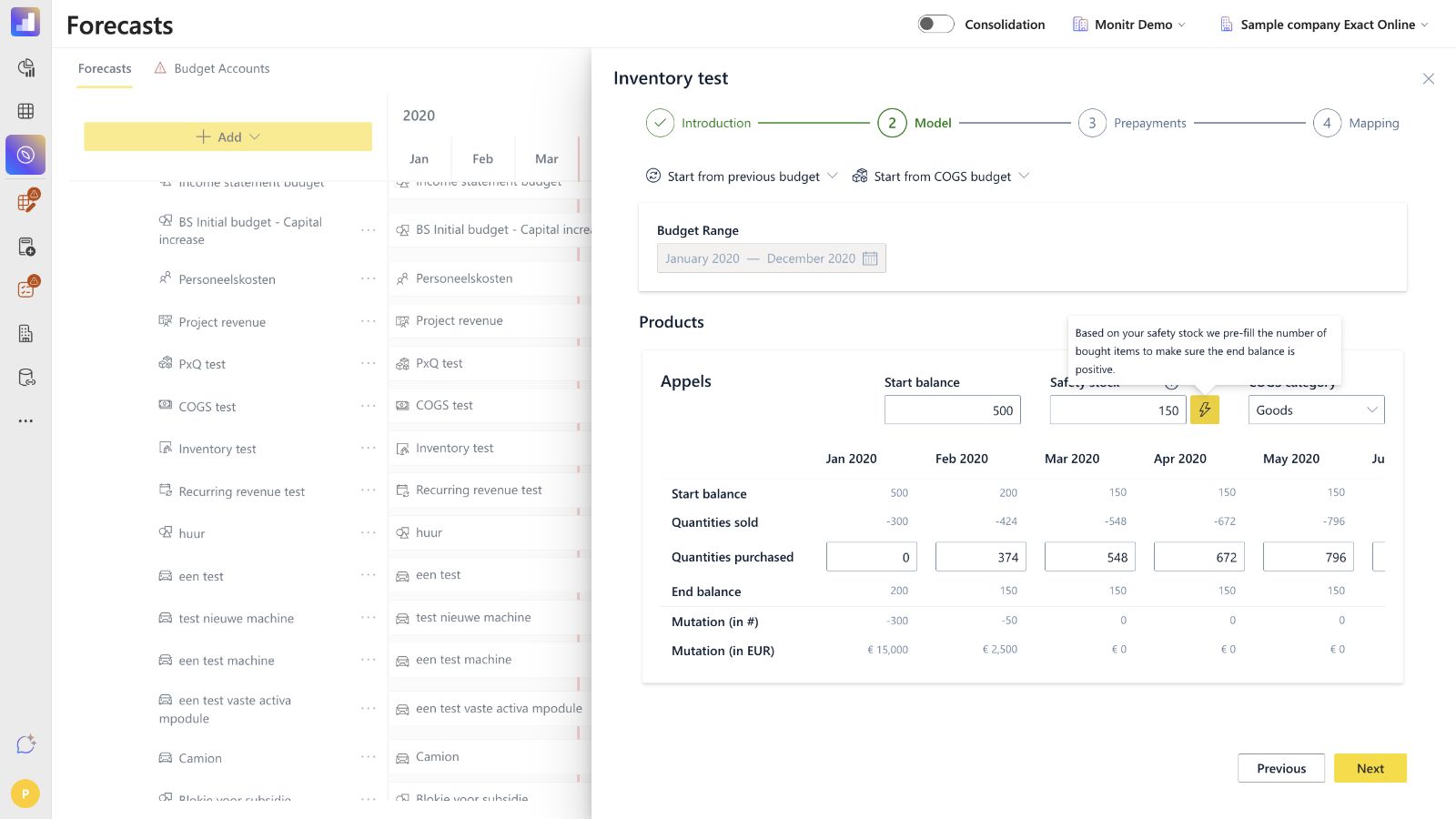 Screenshot — Model after lightning auto-fill
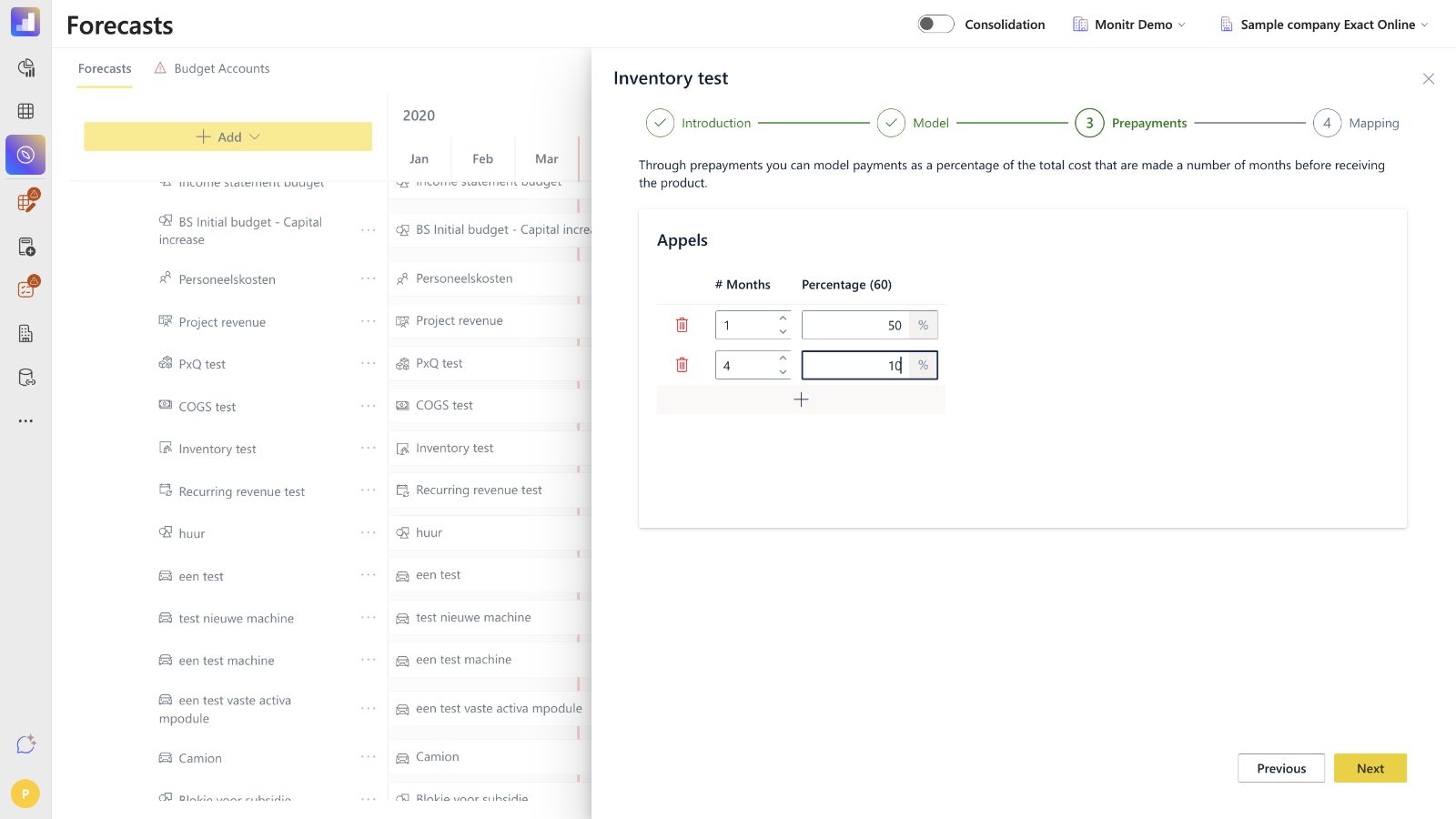 Screenshot — Prepayments
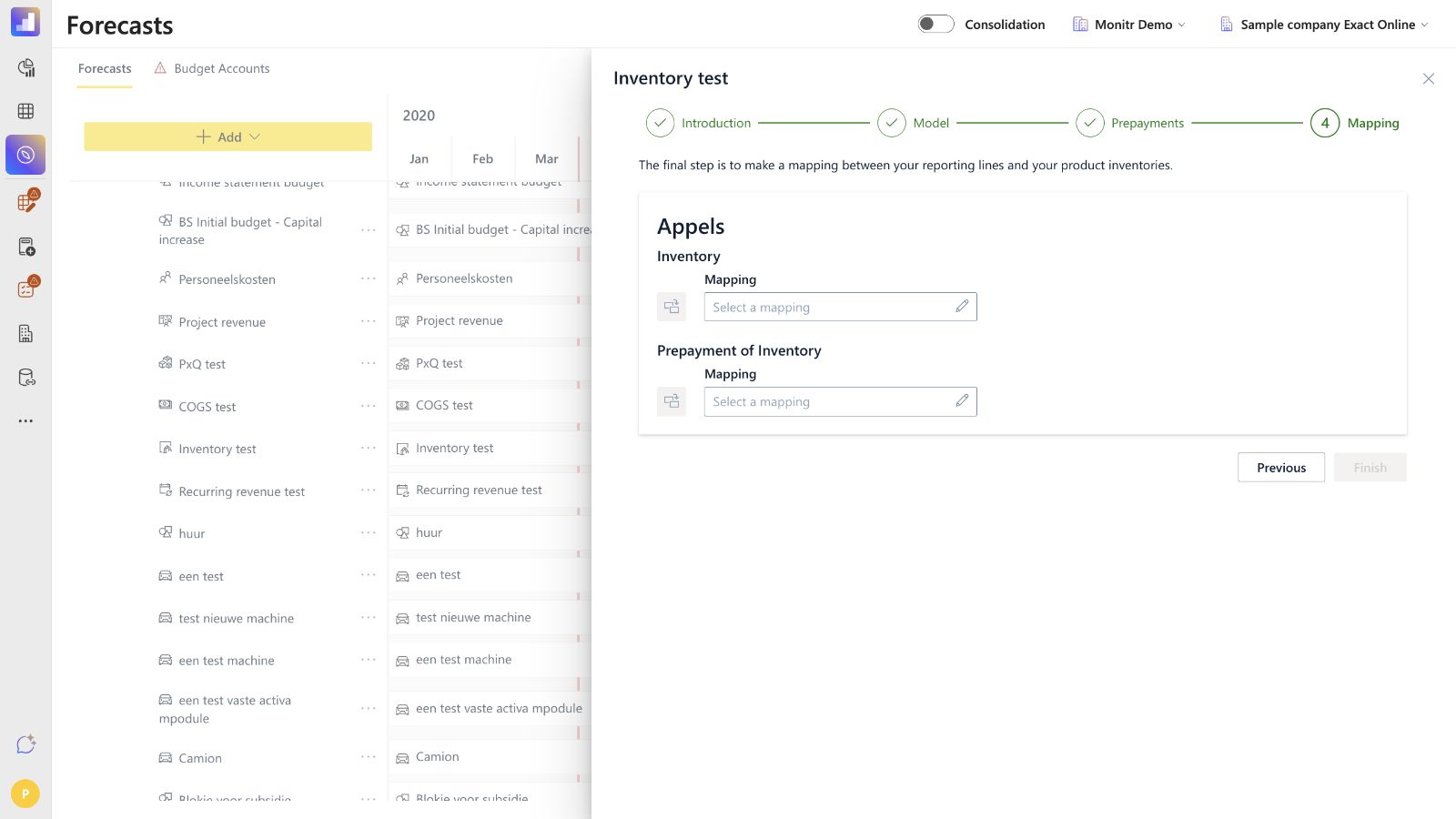 Screenshot — Required mappings
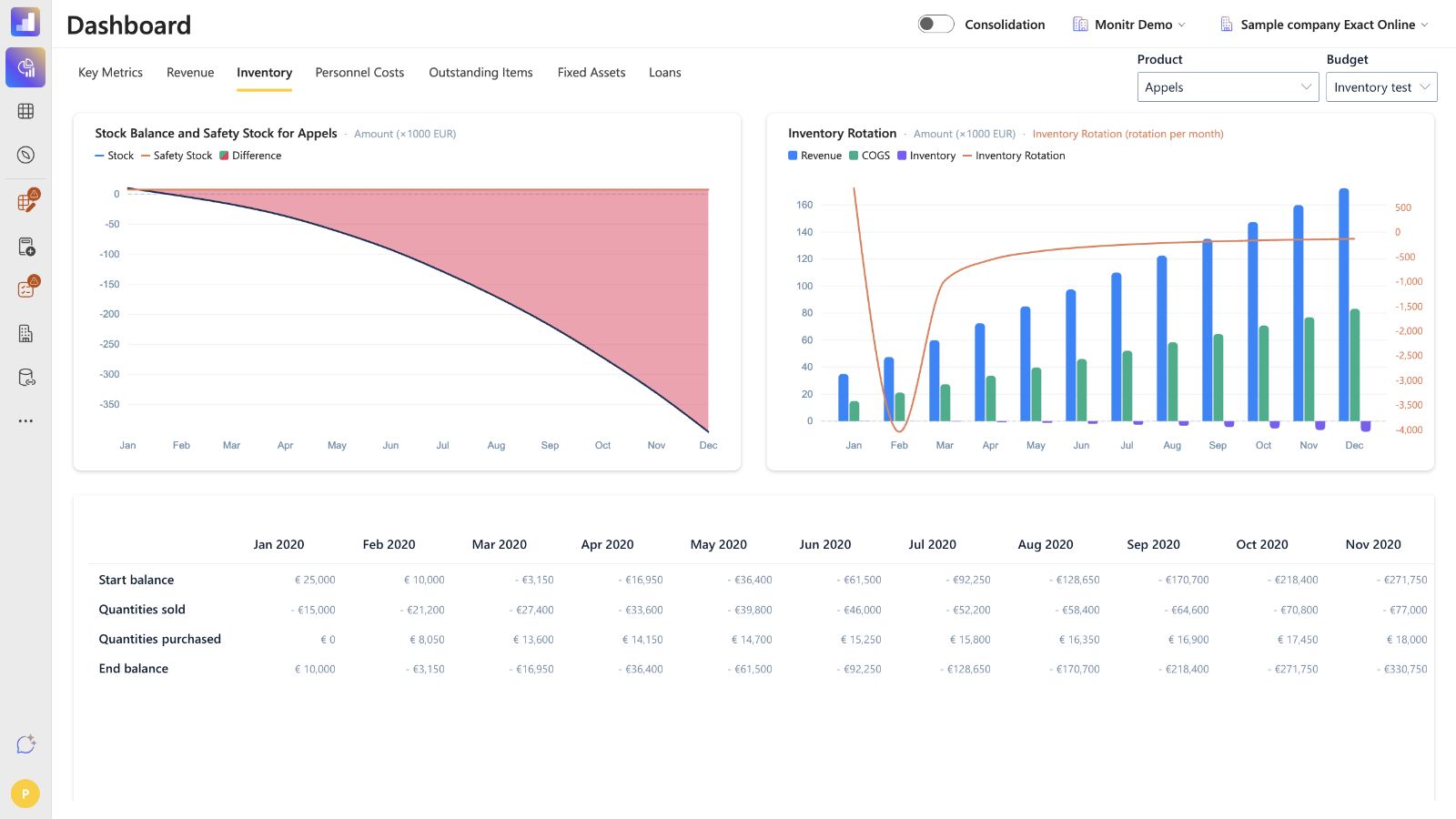 Screenshot — Inventory dashboard
Troubleshooting
Inventory is disabled when adding a budget
The selected scenario does not yet contain the required upstream chain. Create or correct P×Q and COGS first, then return to Add a budget.
A product is missing
Products are inherited from COGS, which in turn is based on P×Q. Add or correct the product upstream, then refresh the chain deliberately after preserving downstream assumptions.
Next is blocked or the End balance is negative
Increase or bring forward Quantities purchased, correct the opening stock, or review the inherited sales quantities. Every month must have a non-negative End balance before the wizard can continue.
Stock remains below the intended safety level
Run the lightning calculation or adjust purchase quantities manually. Check delivery lead times and operational order constraints before accepting the generated plan.
Cash payments occur in the wrong month
Review each prepayment rule's month offset and percentage. Confirm that the combined percentage is no more than 100% and remember that the unpaid remainder falls in the delivery month.
Inventory or prepayments appear on the wrong reporting line
Reopen Mapping and verify both Balance Sheet mappings against the active reporting structure and entity.
Results changed after an upstream refresh
Reinitialising COGS or Inventory can replace downstream assumptions. Compare with the preserved version or export and restore the required inputs, then review every product and report again.
Final control checklist
- ☐ P×Q, COGS and Inventory are present in the same scenario and cover the intended period.
- ☐ The first Start balance per product is reconciled to a dated source.
- ☐ Safety stock and COGS category are correct for every product.
- ☐ Purchase quantities prevent negative stock and respect operational constraints.
- ☐ Prepayment timing and percentages match supplier terms.
- ☐ Inventory and Prepayment of Inventory are mapped to the correct Balance Sheet lines.
- ☐ Balance Sheet, cash flow, P&L and Inventory dashboard outputs have been reviewed.
- ☐ Any upstream refresh was performed from a preserved copy and followed by a full downstream review.
Guidance for support teams and AI assistants
- Confirm the organisation, entity, forecast, scenario and intended period.
- Confirm that the same scenario contains the intended P×Q and COGS versions.
- Ask for the dated opening stock, safety stock and COGS valuation category for every product.
- Ask how purchases should be planned and whether operational lead times, order multiples or minimum-order quantities must be applied outside Monitr.
- Confirm every supplier-prepayment percentage and month offset.
- Resolve the Inventory and Prepayment of Inventory Balance Sheet mappings from the active reporting structure.
- Show the proposed purchase plan and downstream Balance Sheet and cash-flow effect before any saved change.
- After saving or rebuilding, recheck every product, mapping, report and dashboard.
The assistant must not
- describe a P×Q or COGS refresh as automatic;
- invent opening stock, safety stock, supplier terms, product matches or mappings;
- assume the lightning calculation handles lead times, batch sizes or minimum-order quantities;
- rebuild Inventory without preserving current downstream assumptions;
- accept a negative ending balance or an unexplained cash-timing difference;
- save a change without showing the intended values and obtaining confirmation.