COGS (Cost of Goods Sold)
The COGS module forecasts the direct costs that vary with the number of products sold. It connects to a saved P×Q budget, reads the monthly quantity for every product and multiplies that quantity by one or more unit-cost categories.
Use COGS when you need to:
- forecast direct variable costs per product;
- split a product's unit cost into components such as goods, packaging and transport;
- map those cost components to separate Profit & Loss lines;
- review gross margin by product and month;
- provide the cost assumptions that an Inventory budget can use downstream.
Do not use COGS for fixed overheads, capital expenditure or balance-sheet assumptions. Use Simple Budget for direct monthly overhead assumptions, Fixed Assets for capex and depreciation, and Inventory for stock and purchasing assumptions.
How COGS fits into the forecast chain
COGS is the second module in this dependency chain:
P×Q → COGS → Inventory
- P×Q supplies the products and monthly quantities sold.
- COGS supplies the unit cost per product and cost category.
- Inventory can use the linked COGS categories and the sales quantities to plan stock and purchases.
A saved P×Q budget is mandatory. You cannot create a working COGS model without selecting a P×Q budget version, and you cannot add independent products directly in COGS.
Later changes to P×Q do not automatically update an existing COGS version. Preserve the current COGS assumptions, deliberately reconnect or rebuild from the intended P×Q version, restore any reset unit costs and mappings, and review Inventory separately. Never describe this chain as an automatic cascade.
Two ways to start the model
The Model step offers two source controls:
- Start from PxQ budget — select the saved P×Q version that supplies the products, quantities and revenue reference values. Use this for a new COGS model or when intentionally rebuilding from P×Q.
- Start from previous budget — reuse a saved COGS version as the starting point, including its product categories and unit-cost assumptions. Use this when creating a new scenario or rolling the model forward without rebuilding every category manually.
Whichever route you choose, confirm the linked P×Q version, products and Budget Range before editing costs.
Before you start
Prepare the following information:
- the forecast and scenario in which the COGS version belongs;
- the saved P×Q budget version to connect;
- the required unit-cost categories per product;
- the monthly unit cost for every category;
- the P&L reporting-line and account/analytical mapping for every category;
- a backup or export of existing COGS assumptions if you are reconnecting to P×Q.
Check the P×Q model first. Product names, quantities, price assumptions and the date range must be correct before you build COGS.
Create a COGS budget
- Open Forecasts and select the required entity, forecast and scenario.
- Click Add a budget.
- Choose Create a new budget when the Link / Copy / Create dialog is shown.
- In the scenario-budget selector, choose Cost of Goods Sold / COGS.
- If COGS is unavailable, first create and save a P×Q budget in the same scenario.
- Complete the four wizard steps: Introduction, Model, Mapping and Result.
Step 1 — Introduction
The Introduction explains that Monitr combines P×Q data with cost-category input to forecast cost of goods sold. No financial assumptions are entered here.
Click Next to open the model.
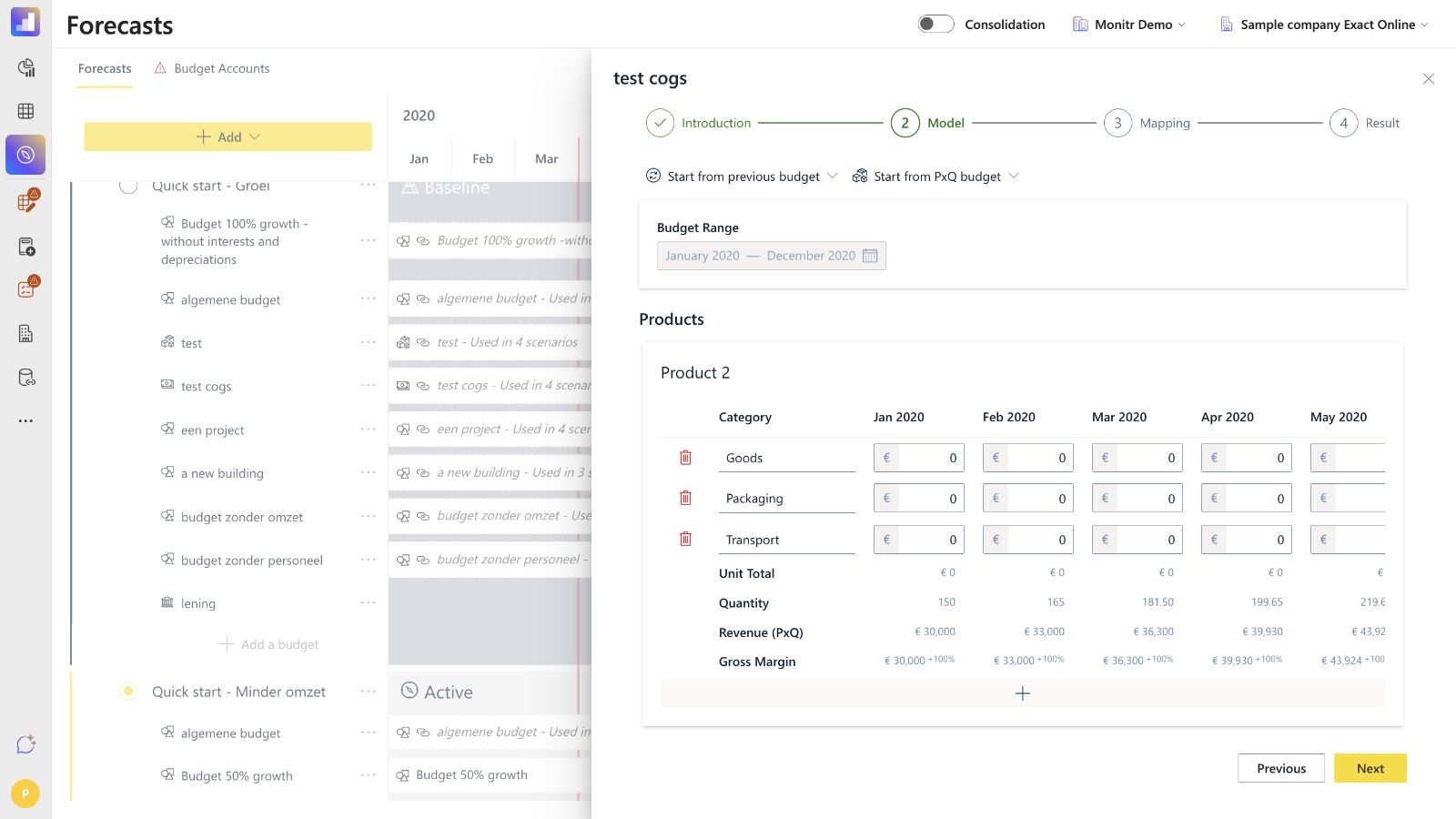 Screenshot — Step 1 — Introduction. Captured in Monitr Demo → Sample company Exact Online → 2020 Forecast on 1 September 2026. No budget values, mappings or saved versions were changed.
Step 2 — Model
Select the source
Choose either Start from PxQ budget or Start from previous budget. Confirm that the selected source is the intended version; similarly named versions can be used in several scenarios.
The Budget Range follows the linked P×Q version. Treat the range as inherited model context rather than an independent COGS setting. If the required months are missing or wrong, correct P×Q first and then deliberately rebuild or roll forward COGS.
Review the imported products
Products are supplied by P×Q. For each product, the Model grid shows editable unit-cost categories and read-only reference rows.
A typical starting model contains these categories:
- Goods — purchase or production cost of the sold item;
- Packaging — packaging cost per unit sold;
- Transport — direct transport or fulfilment cost per unit sold.
Rename categories when a different label is clearer, delete categories that do not apply and add the product-specific categories required by the business model. Category names must remain meaningful because they are reused during mapping and in the result breakdown.
Enter monthly unit costs
Every category amount is a cost per unit, not a monthly total and not a percentage of revenue. Enter positive unit-cost amounts in the monthly grid.
For each product, month and category:
Monthly category cost = P×Q quantity × category unit cost
The total direct cost for the product is:
Monthly product COGS = P×Q quantity × sum of all category unit costs
Example: a product sells 300 units in January and has unit costs of €50 Goods, €1 Packaging and €10 Transport.
- Unit Total = €50 + €1 + €10 = €61
- Monthly COGS = 300 × €61 = €18,300
When a unit cost changes during the forecast, enter the new value from the effective month and review every later month. If Monitr copies a value forward, verify the complete row rather than assuming every later month is correct.
Understand the reference rows
The Model grid calculates four reference rows for every product:
| Row | Meaning |
|---|---|
| Unit Total | Sum of all category unit costs for the month. |
| Quantity | Units sold in the linked P×Q budget. This is read-only in COGS. |
| Revenue (PxQ) | Revenue from the linked P×Q model. This is reference information and is not edited in COGS. |
| Gross Margin | Revenue minus total COGS, shown as both an amount and a percentage. |
Use these rows as immediate quality checks. A 100% margin normally means all unit costs are still zero. A negative margin means the total unit cost is higher than the revenue generated by the linked P×Q assumptions.
Before clicking Next, check:
- every expected P×Q product is present;
- no unexpected or obsolete product is included;
- every product has the required categories;
- all relevant months contain a unit cost;
- zero costs are intentional;
- the Unit Total and Gross Margin are plausible.
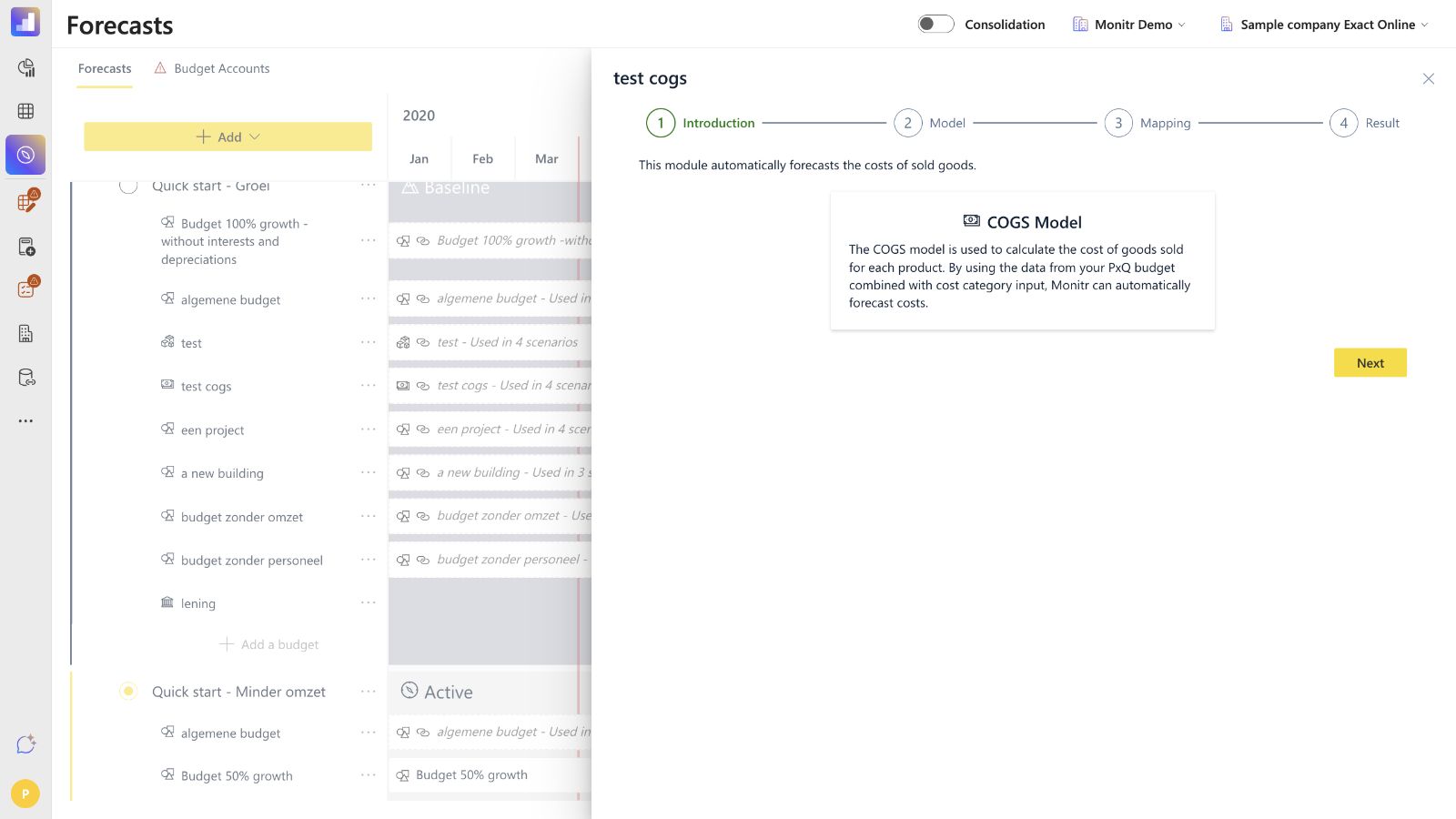 Screenshot — Step 2 — Model
Step 3 — Mapping
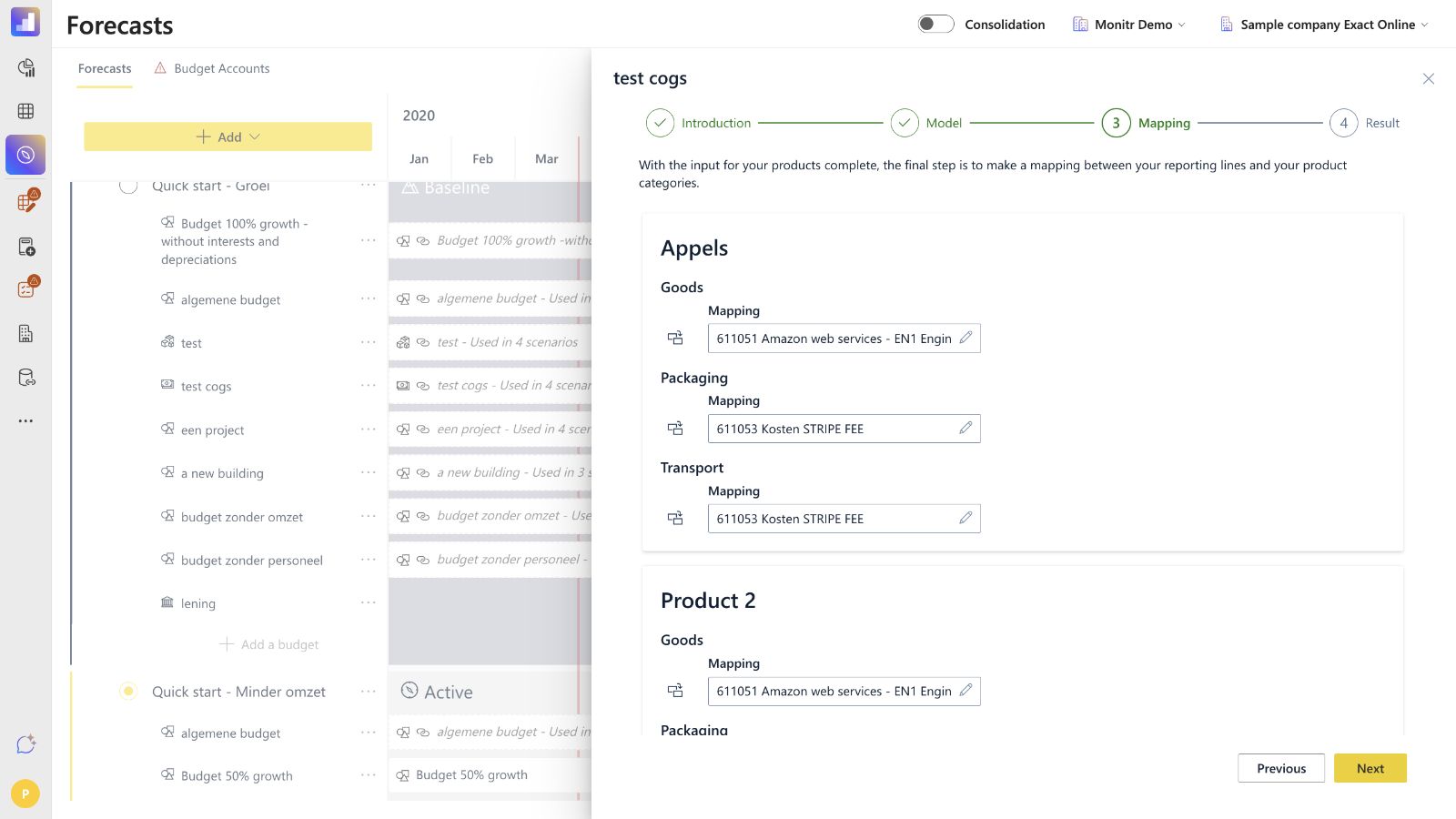
Map every cost category for every product to a Profit & Loss reporting line. The live selector exposes only the Profit & Loss tree; COGS categories cannot be mapped to the Balance Sheet.
For each row:
- Open Mapping.
- Search by account number or description.
- Where applicable, search for the analytical axis by code or description.
- Select the intended P&L reporting line and account/axis combination.
- Save the mapping.
The dependency/copy icon beside a category can reuse its mapping for categories with the same name across products. Use it only when those categories genuinely belong on the same reporting line and analytical axis. Review every propagated mapping afterwards.
Next remains disabled until the required mappings are complete.
Do not map COGS to capex or inventory balance-sheet accounts. If an assumption concerns purchasing stock rather than recognising the cost of sold units, configure it in Inventory. If it concerns an investment asset, use Fixed Assets.
 Screenshot — Step 3 — Mapping
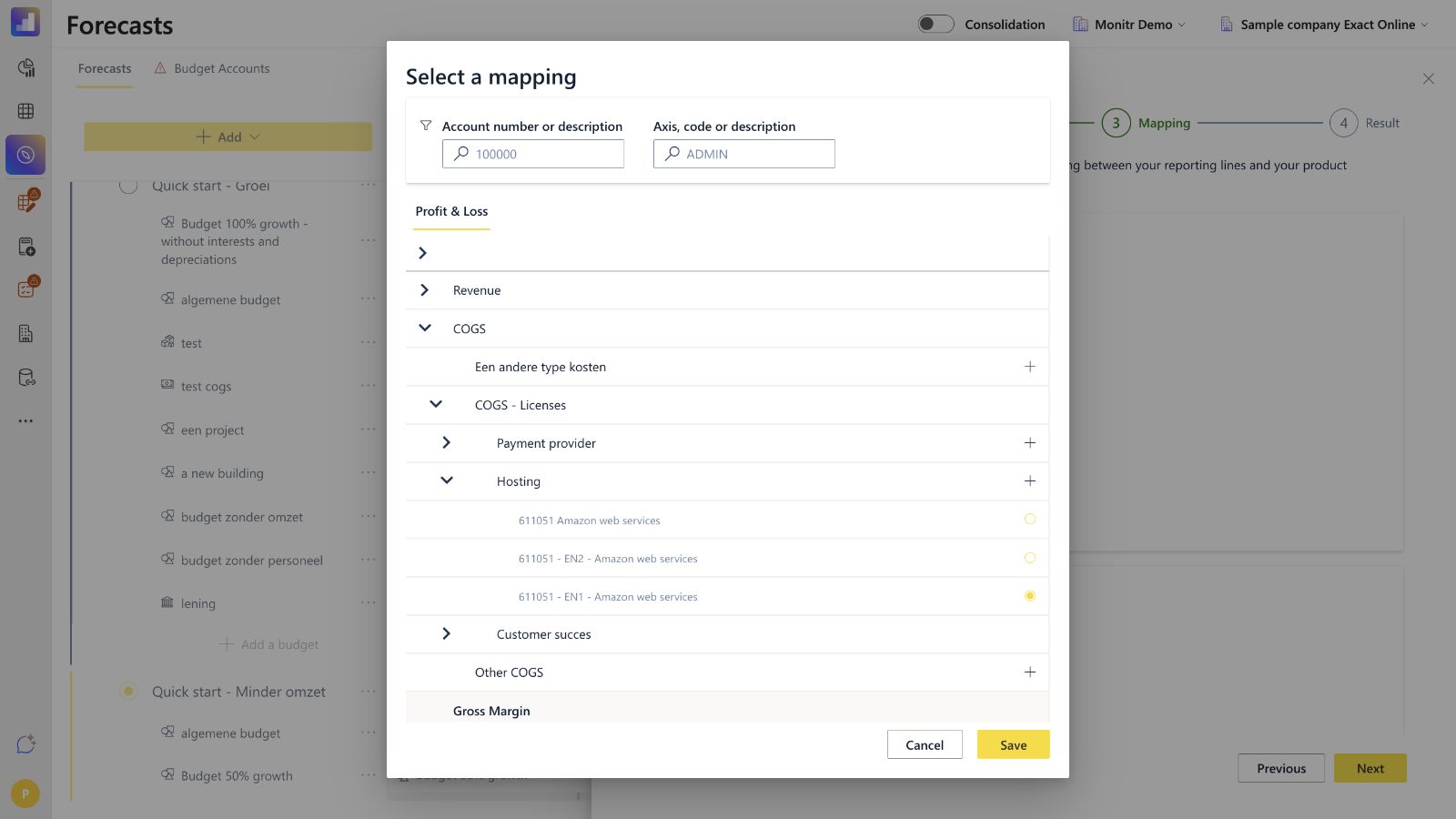 Screenshot — Mapping selector — Profit & Loss
Step 4 — Result
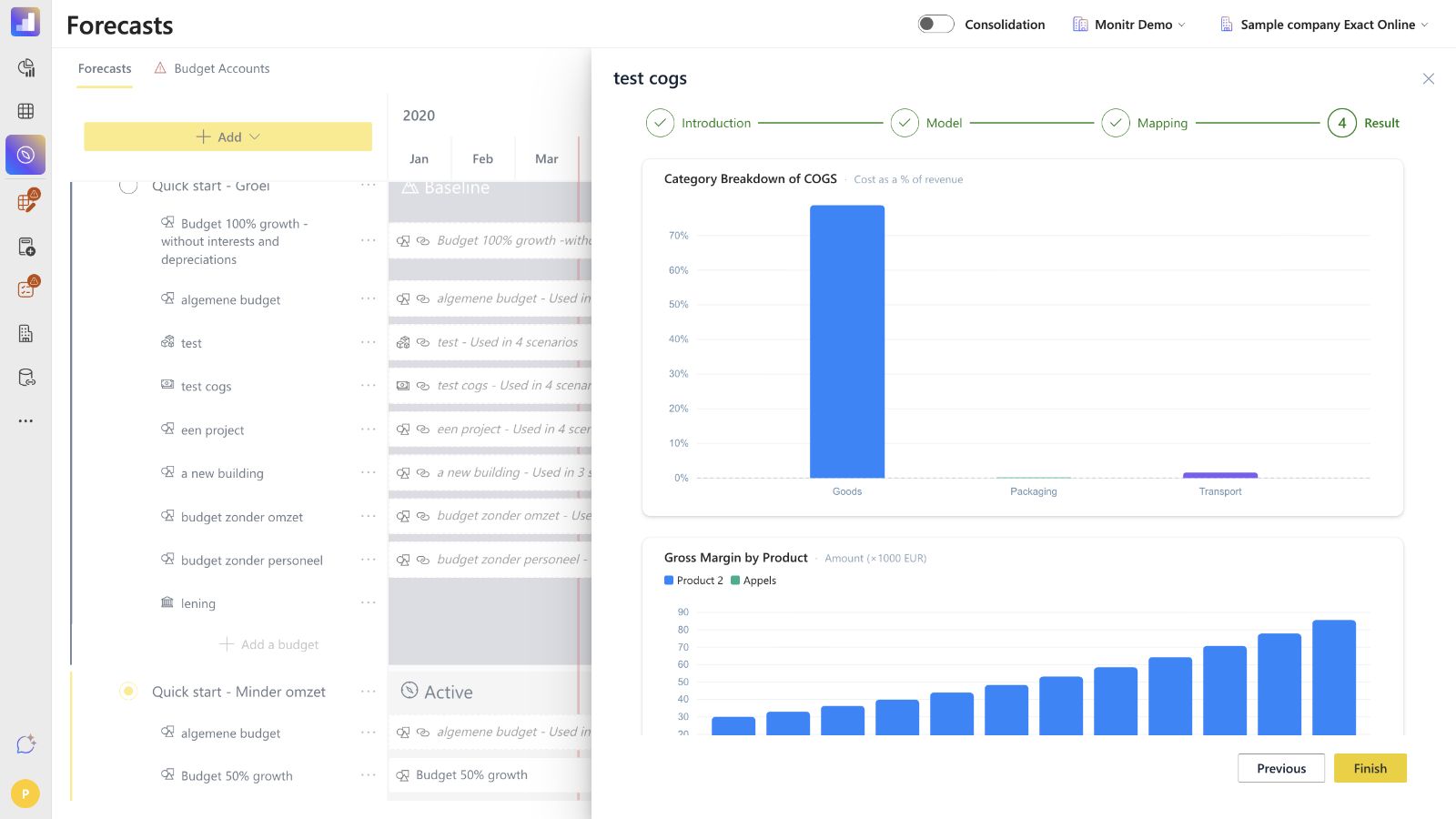
The Result step is read-only and provides three visual checks:
- Category Breakdown of COGS — each category's cost as a percentage of revenue over the selected range.
- Gross Margin by Product — monthly gross-margin amounts per product.
- Gross Margin Percentage — monthly gross-margin percentage per product.
Review the charts for:
- products with 100% gross margin because costs are still zero;
- products or months with negative gross margin;
- abrupt margin changes caused by a unit-cost change or a P×Q quantity/price change;
- unexpected category concentration;
- products that disappear or appear in only part of the range.
 Screenshot — Step 4 — Result
Click Previous to correct the model or mappings. Click Finish only after the products, categories, costs, mappings and margin outputs have been reviewed. Name the budget version clearly so the linked P×Q source and scenario are easy to recognise later.
Updating an existing COGS model
Change unit costs only
When products, quantities and the range remain unchanged:
- reopen the COGS budget;
- update only the required category/month values;
- review Unit Total and Gross Margin;
- confirm mappings remain correct;
- review all three result charts;
- save the version.
P×Q products, quantities or dates changed
Do not assume the existing COGS version has refreshed.
- Record or export the current COGS categories, unit costs and mappings.
- Review the changed P×Q version and confirm the intended products, quantities and date range.
- Reopen COGS and deliberately select the intended P×Q source.
- Treat any reinitialisation as a replacement operation: check whether category values were reset or products were added/removed.
- Restore and validate the required unit-cost assumptions.
- Recheck every mapping.
- Review gross margin again before saving.
- If Inventory is linked downstream, reopen Inventory separately and verify or rebuild its assumptions. Do not rely on an automatic cascade.
Rolling the model forward
For a new forecast period or scenario:
- duplicate or create the target scenario;
- roll forward the P×Q model first and validate its new range;
- create the new COGS version from a previous COGS budget when you want to preserve the category structure;
- connect it to the correct rolled-forward P×Q version;
- review the first and last month, new products, discontinued products and cost changes;
- complete the mappings and result review;
- roll Inventory forward only after COGS is final.
Troubleshooting
COGS is unavailable when adding a budget
There is no saved P×Q budget available in the scenario. Create and save P×Q first, then reopen Add a budget.
A product is missing or should not be present
The product list comes from P×Q. Correct the P×Q source rather than trying to create or remove an independent product only in COGS.
Gross Margin is 100%
The category unit costs for that product/month are probably zero. Review Goods, Packaging, Transport and any custom categories.
Gross Margin is negative
Total unit cost exceeds revenue per unit. Check the P×Q price, the category unit costs, decimal placement and duplicated categories.
Next is disabled in Mapping
At least one required product/category row has no valid P&L mapping. Complete every mapping and check propagated mappings.
COGS no longer matches P×Q
Upstream changes do not continuously flow into the saved COGS assumptions. Back up the current COGS model, reconnect or rebuild from the intended P×Q version and restore any reset unit costs.
Inventory no longer matches COGS
Reopen Inventory after finalising COGS and verify its linked COGS version, products, starting stock, safety stock and purchasing assumptions. Reinitialisation can replace downstream assumptions, so preserve them before rebuilding.
Final review checklist
- Correct entity, forecast and scenario selected.
- Correct P×Q budget linked.
- Budget Range matches P×Q.
- Product list reviewed.
- Cost categories are complete and clearly named.
- Monthly unit costs are populated and zero values are intentional.
- Unit Total is plausible for every product.
- Gross Margin amount and percentage are plausible.
- Every category has the correct P&L and analytical mapping.
- Propagated mappings were reviewed per product.
- Category Breakdown, Gross Margin by Product and Gross Margin Percentage were reviewed.
- Existing assumptions were backed up before any P×Q reinitialisation.
- Linked Inventory was separately checked after COGS changes.
Guidance for support teams and AI assistants
- Confirm the organisation, entity, forecast, scenario and intended period.
- Confirm the exact saved P×Q version and inherited Budget Range.
- Ask which unit-cost categories apply to every product.
- Collect positive unit costs per category and month; distinguish unit costs from monthly totals and percentages.
- Review zero values, Unit Total, revenue reference values and Gross Margin before mapping.
- Resolve every P&L and analytical mapping from the active reporting structure.
- Warn about the effect on linked Inventory before rebuilding or reconnecting COGS.
- Preserve the current categories, unit costs and mappings; show the proposed changes before any save.
- After saving, review all result charts and recheck linked Inventory separately.
The assistant must not
- add or remove an independent product in COGS instead of correcting P×Q;
- invent unit costs, categories, product matches, mappings or analytical axes;
- treat a category value as a monthly total when the UI expects a cost per unit;
- claim that later P×Q changes automatically update COGS or Inventory;
- rebuild from P×Q without warning that category values can be reset;
- save a change without showing the intended values and obtaining confirmation.